


How to Link GA4 with Google Ads: Step-by-Step Guide 2026
Introduction
Being a successful business owner means knowing what strategies, products, or marketing channels generate the most revenue. Aside from merely observing what works, using tools like Google Analytics 4 (GA4) prevents you from making decisions based on guesswork. This tool is not only completely free, but also comes with a user interface that is quite user-friendly. Having and applying the knowledge of how to link GA4 with Google Ads will unite behavioral and campaign data under one analytics account. All of these make understanding how to link GA4 with Google Ads indispensable for every data-driven marketer in 2026.
This article sheds light on how marketers leverage GA4 data-driven attribution in Google Ads, Enhanced conversions, and privacy-centric features like Consent Mode v2, which solves the problems of compliance and effective performance. In short, knowing how to link GA4 with Google Ads is the first step to prioritizing your highest ROI generators.
Why Link GA4 with Google Ads in 2026?
Say, a person clicks your perfume ad today, returns to your site tomorrow, and makes an in-app purchase two days later. Not linking would make these two activities appear as separate sessions, but GA4 recognizes this as a single user journey, and this is essential for Data-driven attribution and accurate Conversion lag analysis. There is more on Attribution and conversion lag as we move forward in this article.
When properly configured, GA4 Google Ads linking gives marketing teams full visibility into which campaigns truly generate revenue instead of just clicks. It allows you to use GA4 audiences in Google Ads for personalized remarketing and include analytics behaviors.
Using GA4 audience publishing to Google Ads, marketers can automatically sync visitors who engaged on-site but didn’t convert. For example, a user who added a perfume to the cart but abandoned checkout can be retargeted with discount visuals through relevant audience triggers, refined by Membership duration and lifetime value segments.
GA4 cross-domain tracking for ads ensures conversions aren’t lost when users move from one domain (blog, online shop) to another. These benefits give businesses confidence in their media spend decisions.
Benefits of linking your Google Ads Account to GA4
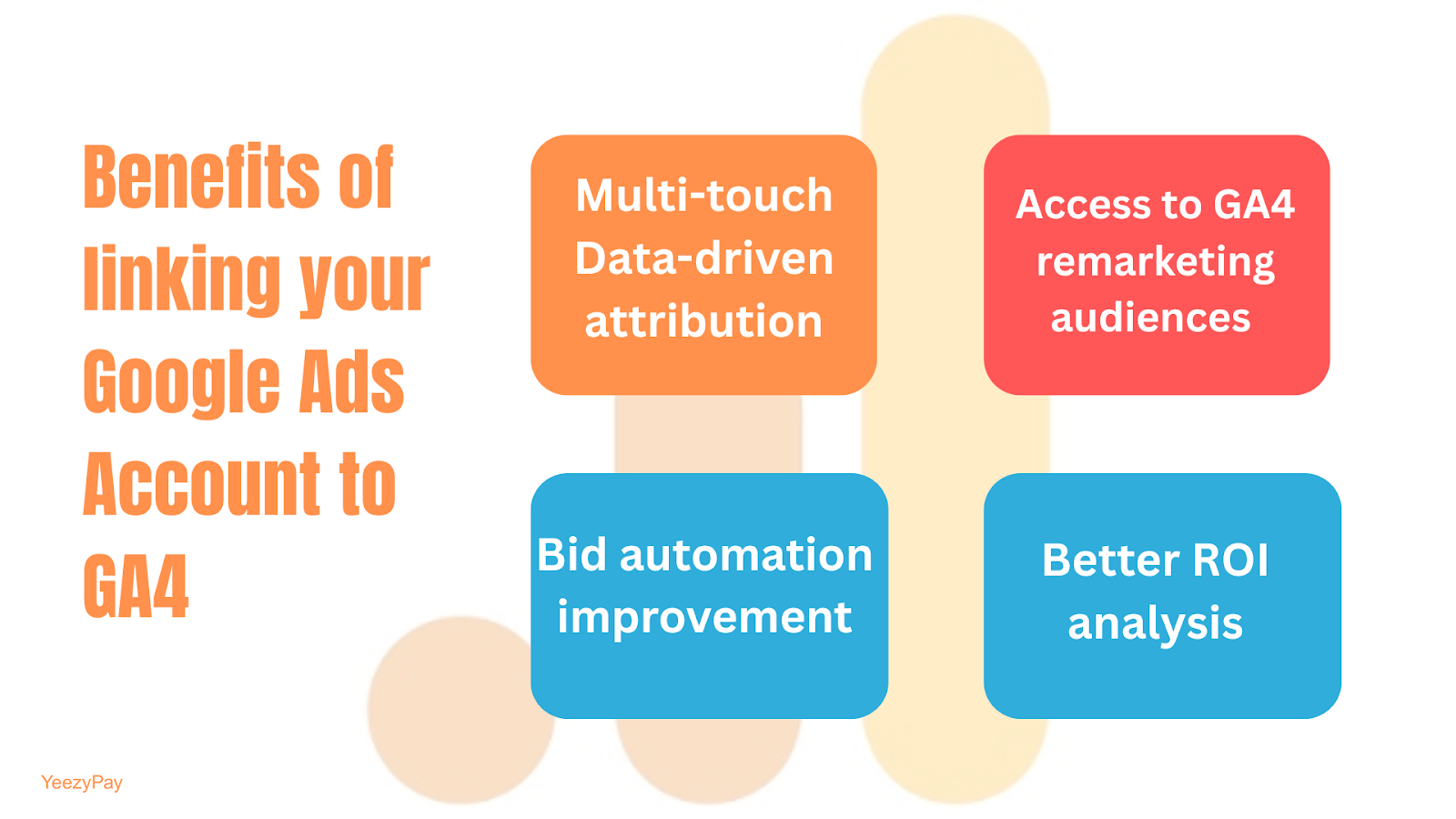 Caption: Infographic showing the benefits of linking GA4 to your Google Ads account.
Linking accounts assembles scattered analytics into actionable insights in these ways:
-
Multi-touch Data-driven attribution: GA4 tracks every ad click and website visited instead of focusing on just the last click before purchase. It recognizes the full story of how a custom ended up buying.
-
Access to GA4 remarketing audiences Google Ads: This lets you group your audience based on behavior so you can reach people who are truly interested.
-
Bid automation improvement: Instead of bidding blindly, Google Ads uses GA4 to determine how valuable each conversion is, so that you can focus on sales with higher value.
-
Better ROI analysis: Learning how to link GA4 with Google Ads exposes you to a better ROI analysis. When campaign info through linked Source/medium and UTM parameters/codes is connected to GA4, you know exactly where your customers come from. Whether Facebook, Instagram, or organic searches, this transparency lets you compare the channel with the most engagement and purchases, which in turn guides your investment.
On better ROI analysis, instead of judging ads by just cost-per-click, you can assess actual revenue per event(i.e, visits, clicks). These events are linked directly to specific ad clicks using unique IDs such as GCLID, GBRAID, and WBRAID, which are special tracking codes Google uses to recognize and connect ad clicks to user behavior. Another aspect of a better ROI analysis is the auto-tagging, which is a feature that automatically adds these special tracking codes to your ad URLs, so that GA4 can match website visits and conversions back to the right ad campaigns.
When combined with Google Signals (which collects anonymous data about users across devices), GA4 can see if someone saw your ad first on their phone but later made a purchase on their PC.
What Changed Versus Universal Analytics
|
Category |
GA4 |
Universal Analytics |
|
Data Model |
tracks event parameters, i.e, everything leading up to the event (clicks, purchases) |
tracked visits by sessions and page views |
|
User-ID |
assigns IDs to users to recognize them across multiple devices |
struggled with this aspect due to cookie reliance |
|
Advertising Workspace |
GA4’s Advertising workspace offers unified settings for Attribution model (tells which ads channels deserve credit when a a user finally makes purchase, rather than assuming the channel purchased from) and Lookback window (which defines how far back GA4 should look at user interactions to give credit, example if a user clicked an ad a week ago, but bought today, Lookback can decide if the old click deserves credit or not). |
The attribution model was mainly limited to the last click. Lookback window was fixed and less customizable, usually 30 days. |
|
Consent Mode v2 |
replaces reliance on cookies by anonymizing data for users who do not accept cookies |
relied heavily on users who accept tracking |
|
Server-side Tagging |
Data is sent directly from servers rather than browsers and is able to bypass blockers like ad blockers. This is managed via Google Tag Manager |
vulnerable to ad blockers and cookie restrictions |
Prerequisites and Access
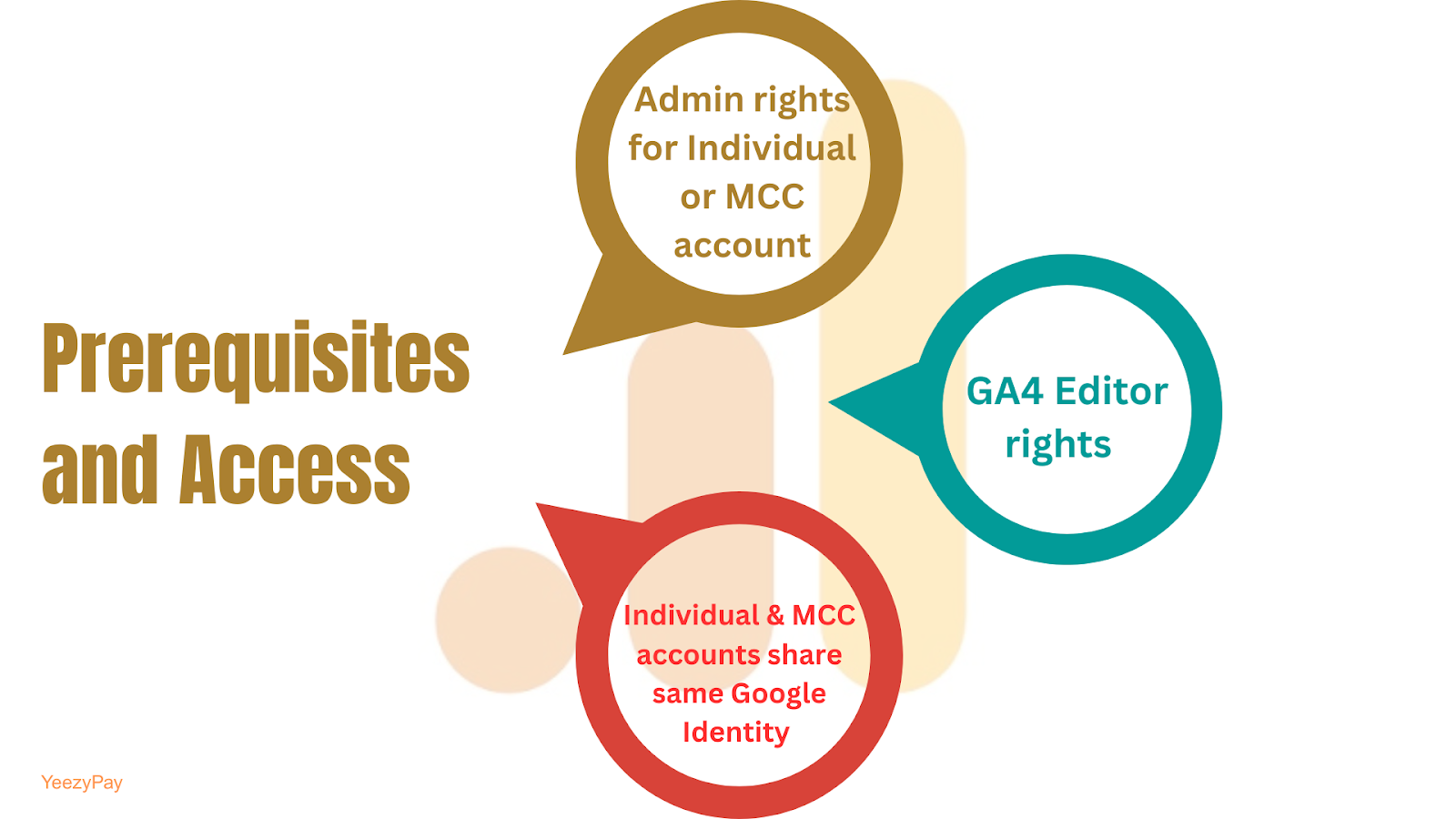
Caption: Infographic illustrating the prerequisites needed to link GA4 to your Google Ads Account.
You can only link GA4 and Google Ads 2026 if you meet these requirements:
-
You have Editor rights in GA4.
-
You have Admin rights in the individual ad account or the Google Ads manager account (MCC).
-
Both the individual versus the manager (MCC) use the same Google identity.
Property/account hygiene checklist
Account hygiene matters. Broken links, inconsistent UTM parameters, and missing GCLID tags cause attribution distortion. Verify:
-
Google Signals is activated for cross-device insights.
-
Source/medium tags are standardized to avoid fragmented campaign data.
-
Your GA4 linked accounts settings reflect all active Ads IDs.
-
If your organization owns several branches, link Ads accounts to a central GA4 property.
Step-by-Step: Link Google Analytics 4 with Google Ads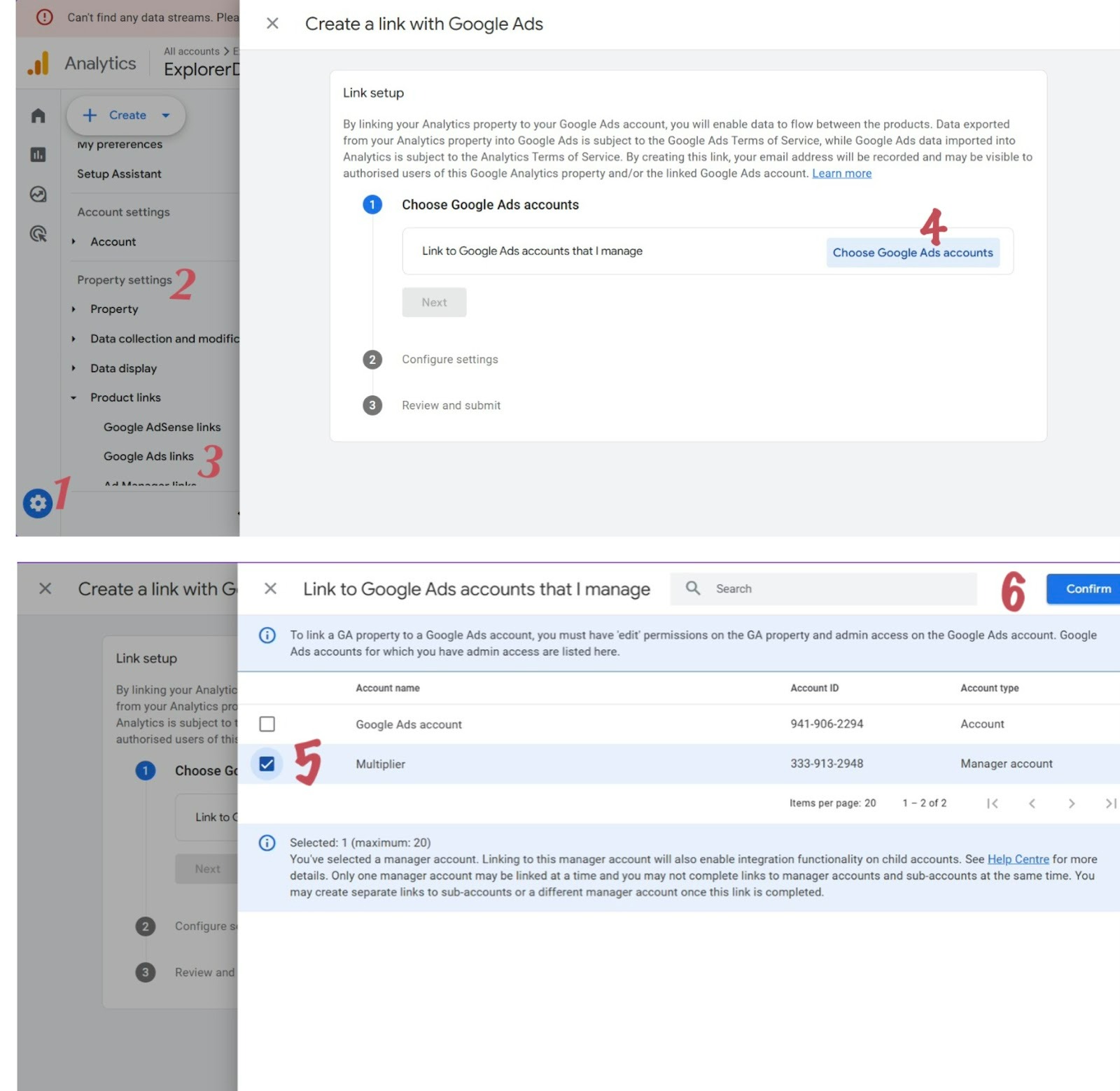
Caption: Screenshots tutorial on how to link Google Analytics 4 with Google Ads.
-
In GA4, go to Admin > Product Links in Property settings > Google Ads Links.
-
Click Link.
-
Choose Ad accounts to connect.
-
Enable auto-tagging GCLID, and Personalized Ads sharing.
-
Submit and confirm.
Within 24 hours, Ads will begin importing GA4 event-level data. To ensure accurate tracking, always verify GA4 Google Ads link in your analytics setup.
Importing Conversions from GA4
In trying to set up GA4 conversion tracking for Google Ads, you are telling Google exactly which actions on your website (e.g, “checkout”) are important and should count as conversions to measure account success.
To import GA4 conversions to Google Ads, do this:

Caption: Screenshots tutorial showing you how to import conversions from GA4.
-
Go to Admin > Events > Create Events > Mark as Conversion.
-
Go to Conversions to see if the checked event will be displayed.
Enhanced Conversions: when and how
The GA4 enhanced conversions setup adds an extra layer of accuracy by securely hashing (encrypting) first-party data like customer emails collected during conversion. This helps Google perfectly match conversion data to ad clicks even when browsers block cookies or tracking pixels (like on Safari browser).
It ensures conversions aren’t lost due to privacy restrictions and the reported data remains reliable.
In GA4, you can configure your conversion events to count either ‘one’ conversion per session or ‘every’conversion event, ensuring deduplication across Ads (removal of duplicate entries).
GA4 conversions count one vs every
1. Count one: Means GA4 only counts one conversion per user per event. This means that if a user submits a lead multiple times, only the first submission is counted.
2. Count every: Means every instance is counted. For e-commerce, this makes sense because multiple purchases should be tracked separately.
Building and Publishing Audiences
Audience architecture in GA4 is now more flexible. You can group users based on their behavior, actions, or demographics.
This means you can create a group for users who viewed products but didn't purchase. This is useful for remarketing, which means showing ads to remind or convince these users to come back and complete the purchase.
Steps in building and publishing audience: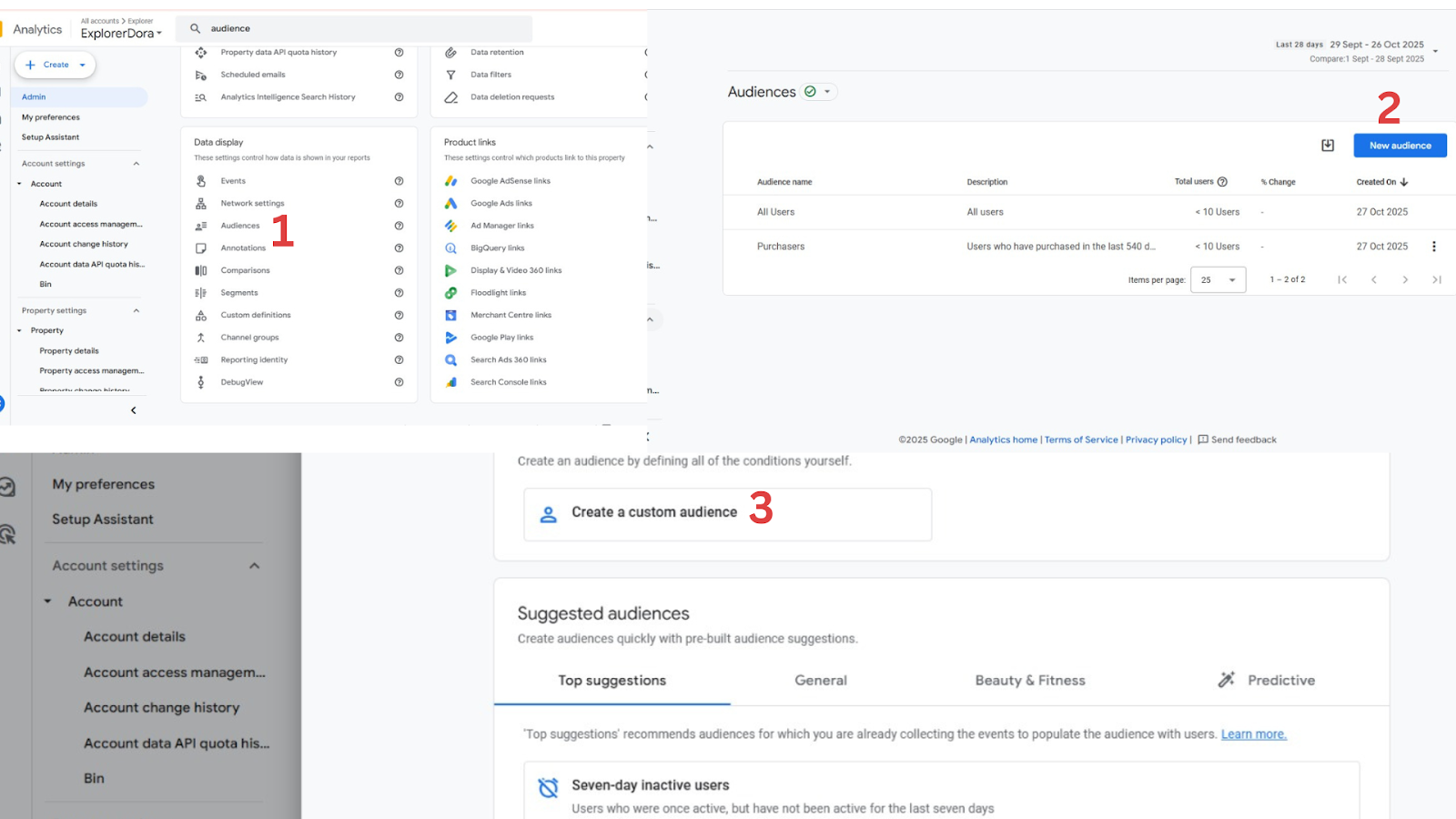
Caption: Screenshots tutorial showing a step-by-step guide for building and publishing audience in GA4.
-
Via the Advertising workspace, go to Audiences > Create audience (this is where you create user lists).
-
Use Audience triggers like pageview with conditions: This is where you tell GA4 what kind of user activity should add someone to the list.
-
Define membership duration: Define how long someone stays in that audience list after performing that action, e.g., 30 days.
-
Click Publish to Google Ads. Your lists appear automatically under the Ads Audience Manager.
Marketers use GA4 remarketing audiences Google Ads to personalize copy or adjust bids. Retailers often segment “Returning visitors” or “High-value customers” to be able to treat them differently from new visitors. Operating hand-in-hand with Consent Mode v2 ensures only opted-in users or users who agreed to tracking populate remarketing lists ethically.
Verify, Test, and QA
Even if your GA4 and Google Ads setup looks correct, you still have to confirm that data is being transmitted between both platforms.
The steps below are how you test GA4 conversions in Google Ads to make sure your campaigns are being correctly measured:
1. Use a Real-time report to confirm that traffic from Google Ads is visible: Your real-time report shows live traffic as it happens and confirms that your connection between Google Ads and GA4 is working.
2. In DebugView, simulate test conversions to ensure parameters are accurate: DebugView is a tool used during testing to emulate actions like purchases or form submissions. Check if the tracking code captures the right information.
3. Confirm tags from Google Tag Manager: Confirm that these tags include identifiers such as GCLID, WBRAID, and GBRAID to ensure your campaign performance is correctly attributed.
4. Check Event parameters for campaign data: Campaign data (source, medium, campaign) provides analytics about your advertisement results inside GA4.
5. Conversion lag: To troubleshoot GA4 Google Ads link, enable GA4’s DebugView, replicate events, and review delayed conversions via Conversion lag in Ads attribution report. Your conversion lag helps you understand campaign timing because some Ads do well days later.
6. Filters and Consent settings: If errors persist, verify you didn’t restrict Ads data with incorrect filters or region-based consent defaults.
Attribution and Reporting
The Attribution model defines how credit is given to marketing channels when someone finally makes a valuable decision(e.g buying products). GA4 defaults to Data-driven attribution, unlike Universal Ads’ previous standard of acknowledging the last click.
In simpler terms, the machine language assesses the history of users' engagement and assigns credit across the involved marketing channels or touchpoints. Attribution can be reported in two ways:
In the Model comparison reports, you can assess cross-channel (multi-source) versus Ads-only views.
Lookback windows: This affects which clicks earn credit across long sales cycles (typically 30 or 90 days).
GA4 can automatically send all the raw data it collects from every user interaction and ad details, like clicks, to a powerful data warehouse called BigQuery. BigQuery lets businesses store large amounts of data and run advanced analyses using SQL queries.
Common Issues and Troubleshooting
Even mature setups face common pitfalls:
1. Missing GCLID/GBRAID/WBRAID: Sometimes, if your website redirects users from one URL to another (redirects), these codes get stripped off and lost. This breaks tracking and attribution. To fix this, use a secure HTTPS protocol and ensure any redirects keep these tracking codes intact.
2. Cross-domain misconfigurations: If your business uses multiple related domains (like shop domain and blog domain), users moving between these can be mistakenly counted as new visitors each time. GA4’s cross-domain measurement ties these visits together to avoid redundancy. To set this up correctly, consistently map UTM to GA4 for Google Ads and configure GA4 cross-domain tracking for ads correctly.
3. Consent Mode conflicts: If users decline cookies or deny tracking, Consent mode with GA4 for ads respects these choices and models their behavior rather than collecting full data. The downside is that it could lead to incomplete or delayed data.
4. Thresholding: When traffic volume or sample size is too low, GA4 hides or suppresses data rows to protect privacy. In a case where very few users converted from a specific campaign, GA4 may not show that data to prevent you from identifying these individuals.
5. Duplicated conversions: Happens when both GA4 event imports and Ads tags measure the same action.
Generally, when you encounter major inconsistencies, unlink and relink GA4 Google Ads after verifying tags. Backup historical data exports in BigQuery before relinking.
Legal, Privacy & Compliance into 2026
Data privacy is extremely important in 2026 when using tools like GA4 for analytics. With the ongoing enforcement of CPRA/CCPA, all companies must offer Restricted Data Processing (RDP) for users who opt out. Also, HIPAA-sensitive data restrictions prohibit medical-related identifiers, and COPPA disallows ad personalization for ages under 13.
Consent Mode v2 helps GA4 abide by these rules. With it, GA4 can continue tracking in a privacy-friendly way even if cookies are blocked. Practically, every business maintaining GA4 Google Ads linking must add a Consent Management Platform (CMP) to their sites. The CMP asks users for tracking permission and then activates GA4 consent settings like ad-storage and analytics-storage based on responses. This way, traffic and conversions are only measured for consenting users.
Governance & Maintenance
Once you achieve a stable setup, periodic reviews ensure sustainability.
Best practices:
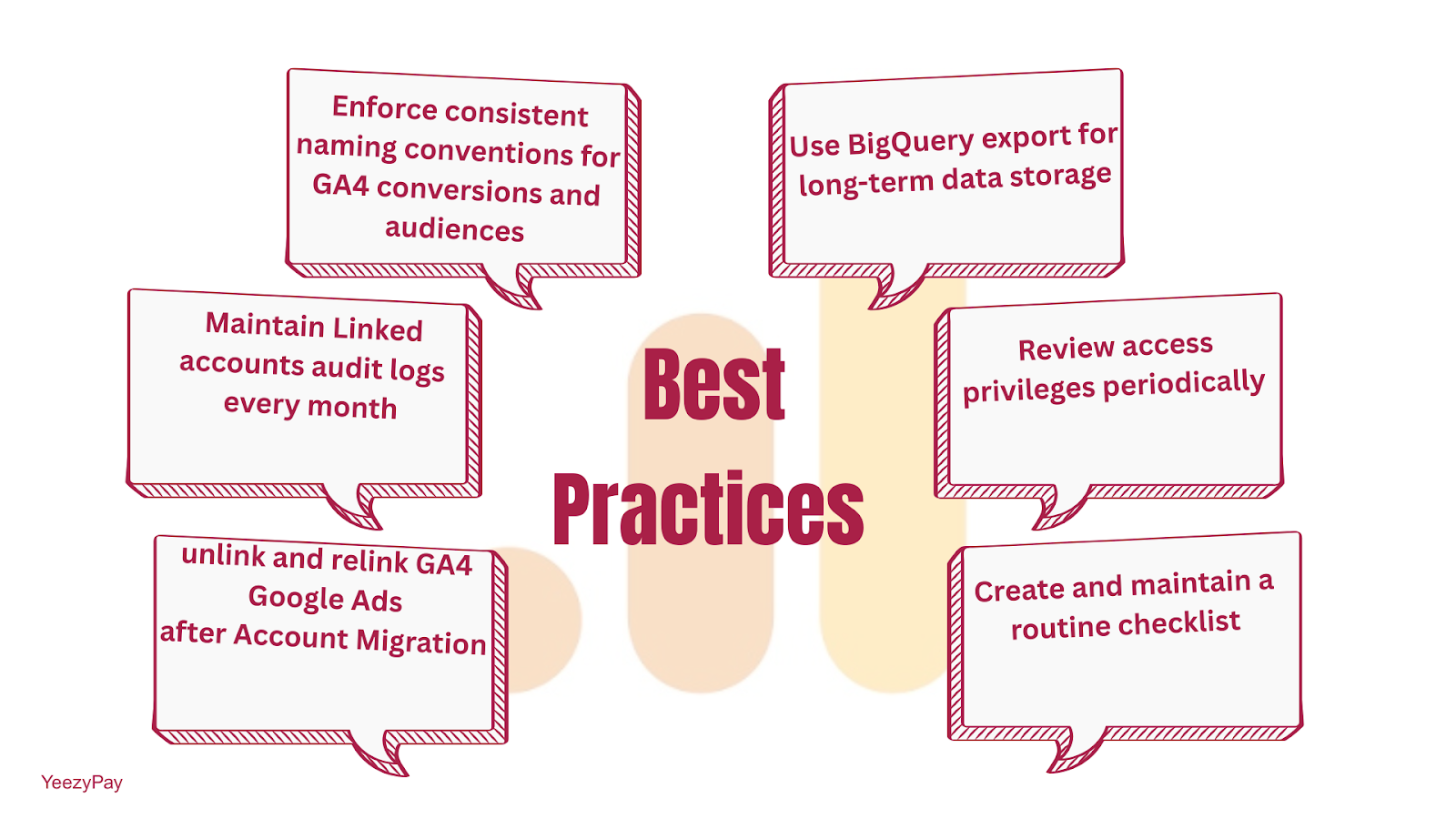
Caption: Infographic summarizing best practices for Google Analytics 4.
Once you connect GA4 with Google Ads and achieve a stable setup, you need regular checkups and good management practices to keep data accurate and your advertising running smoothly over time.
Here are the best practices in concise terms:
1. Enforce consistent naming conventions for GA4 conversions and audiences: Use clear, standardized names for things like conversion events to avoid confusion when teams analyze reports.
2. Use BigQuery export for long-term data storage: BigQuery is designed to store and analyze many years of detailed analytics data beyond GA4’s limit.
3. Maintain Linked accounts audit logs every month: Keep a monthly record of any changes or updates made to the linked GA4 and Google Ads accounts. This helps track what was done by whom, so you can trace issues easily.
4. Review access privileges: From time to time, check who has permission to edit or view your GA4 and Google Ads setups. This is to prevent unauthorized changes.
Before making big changes (like changing tracking setups), follow a formal process to plan, test, and document the updates to minimize the risk of data loss or errors.
5. Account Migration: If you migrate from one Ads structure to another, unlink and relink GA4 Google Ads after double-checking the property hierarchy. Always validate using DebugView to prevent event tracking disruption.
6. Routine Checklist: Create and maintain a routine checklist and set reminders accordingly.
Checklists
Pre-Linking Checklist
-
Verify GA4 and Google Ads Admin Permissions: Make sure you have the right user roles in both accounts (like Admin or Editor) so you can link them.
-
Confirm Active Google Signals and Property Region to enhance user insights. Analytics of your property region or business location must be correct for compliance.
-
Ensure Consistent UTM parameters: Your marketing URLs should have properly tagged UTM parameters so GA4 can track campaign data accurately.
-
Enable Server-Side Tagging: This advanced setup helps send accurate events by reducing loss from ad blockers or browser restrictions.
Post-Linking QA Checklist
-
Validate data in real-time report: Check GA4’s real-time data to confirm that Google Ads traffic is tracked immediately.
-
Confirm auto-tagging GCLID is active: Verify that Google Ads auto-tagging is on, so ad clicks are tagged for conversion tracking.
-
Run Tests for Conversion Event Capturing: Simulate conversions to ensure that notable actions are recorded correctly in GA4 and imported into Google Ads.
-
Verify Audience publishing Status: Make sure your GA4 audiences are successfully published and appear in Google Ads for remarketing.
Monthly Health-Check Checklist
-
Audit Advertising Workspace Performance: Review reports and data quality in GA4’s advertising workspace regularly.
-
Inspect Returning Users via Ads Data Import: Check how well returning users and repeat visits are tracked via Google Ads data syncing.
-
Check the Attribution Model and Lookback Window to ensure they remain consistent.
-
Adjust Remarketing Frequency: Tune how often ads are shown to audiences to keep them effective.
Conclusion
Linking GA4 to Google Ads while keeping your setup clean and updated moves your analysis from lazy metrics, like click counts to real accountability, where you can tell which ads actually led to sales or leads. This is why mastering how to link GA4 with Google Ads in 2026 is a must-do for anyone who intends to make the most of their ad expenses.
Whether through GA4 linked accounts settings, Enhanced conversions, or Data-driven attribution, the efforts of analytics and advertising platforms offer an advantage for business owners. By integrating these systems properly and maintaining hygiene over time, marketers make better decisions, increase conversions, and reduce wasted ad spend.
FAQ
Q: How do I link GA4 with Google Ads in 2026?
Use GA4 Admin > Product Links in Property Settings > Google Ads Links > Link > Confirm > Enable auto-tagging. Data sync begins within 24 hours.
Q: Do I import Google Analytics 4 conversions or use Google Ads tags instead?
Import GA4 conversions when events provide richer behavioral value; use Ads tags for standalone campaigns not modeled within Analytics.
Q: Why are GA4 audiences not showing in Google Ads?
Make sure Personalized Advertising and GA4 audience publishing to Google Ads are both switched on in your GA4 property.
Q: How long until conversions appear after linking GA4?
This depends on the conversion lag and tag health of your account. Usually, this is within 24–48 hours.
Q: What permissions are required to link Google Analytics 4 and Google Ads?
Editor-level in GA4 and Admin-level in Ads; for agencies, link GA4 to Google Ads manager account to simplify multicustomer management.


