


Google Ads Scripts in 2026: How to Automate Monitoring, Pacing, and Reporting
Introduction
What Google Ads Scripts Are and Why They Still Matter
Google Ads Scripts are JavaScript programs that run inside the Google Ads interface and interact with account data through the AdsApp API. They've been around since 2012 — and despite Smart Bidding, Performance Max, and every automation layer Google has added since — they're still one of the most practical tools available to anyone managing accounts seriously.
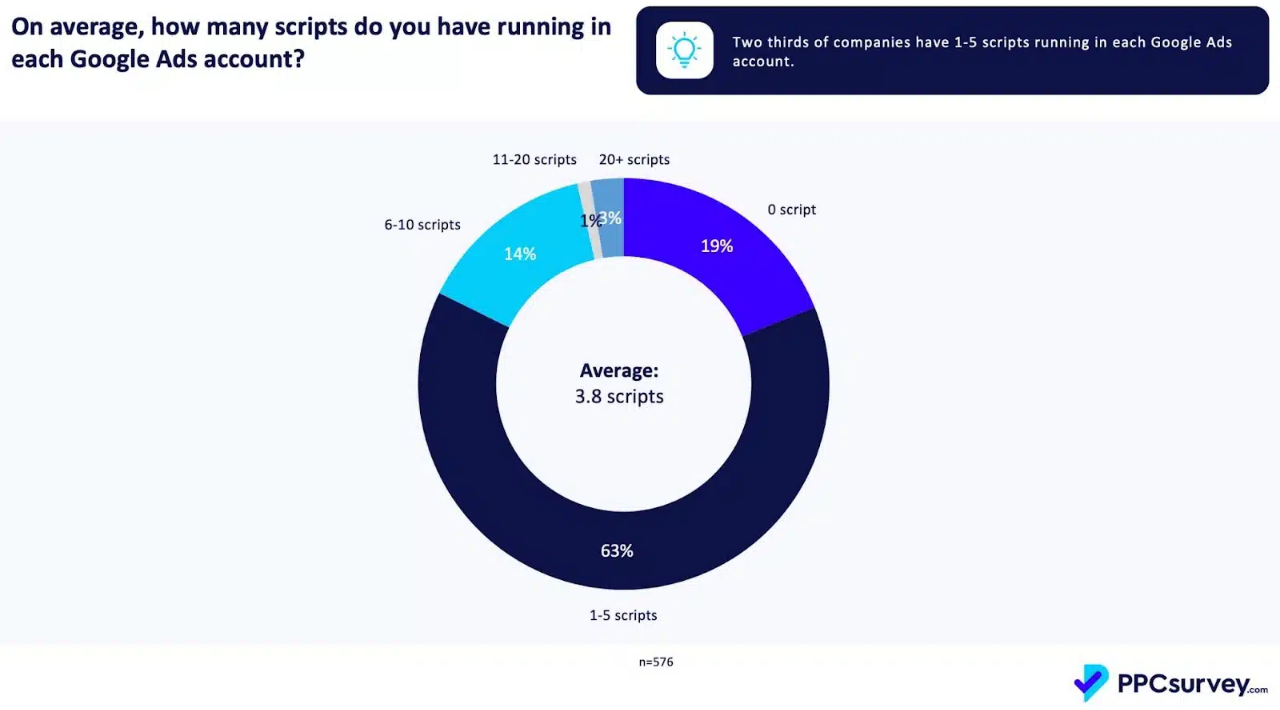
The reason is straightforward: Google Ads automation scripts do things the native interface can't. Custom alerting, cross-campaign data aggregation, external data integration, scheduled reporting — none of that is possible through automated rules or campaign settings alone. According to Search Engine Land's 2025 analysis, 63% of active advertisers use between one and five scripts in their accounts. The 19% who use none are either running very small budgets or leaving meaningful efficiency on the table.
A concrete example from Search Engine Journal: a client exhausted their monthly budget late on a Friday. No one noticed until Monday morning. A single pacing alert script — five minutes to set up — would have caught it within the hour. That's the practical value of Google Ads Scripts: not replacing judgment, but making sure the account doesn't quietly break while no one's watching.
For agencies and media buyers managing multiple accounts, the case is even stronger. PPC specialists run an average of 3.8 scripts per account according to Digital Silk's 2025 benchmarks. Frederick Vallaeys, co-founder of Optmyzr and one of Google's first 500 employees, has been publishing and refining scripts since the feature launched — his position is simple: any account spending over $5,000/month should have at minimum a budget monitor and a disapproval alert running at all times.
Google Ads Scripts Basics
How Scripts Work — JavaScript in the Google Ads Environment
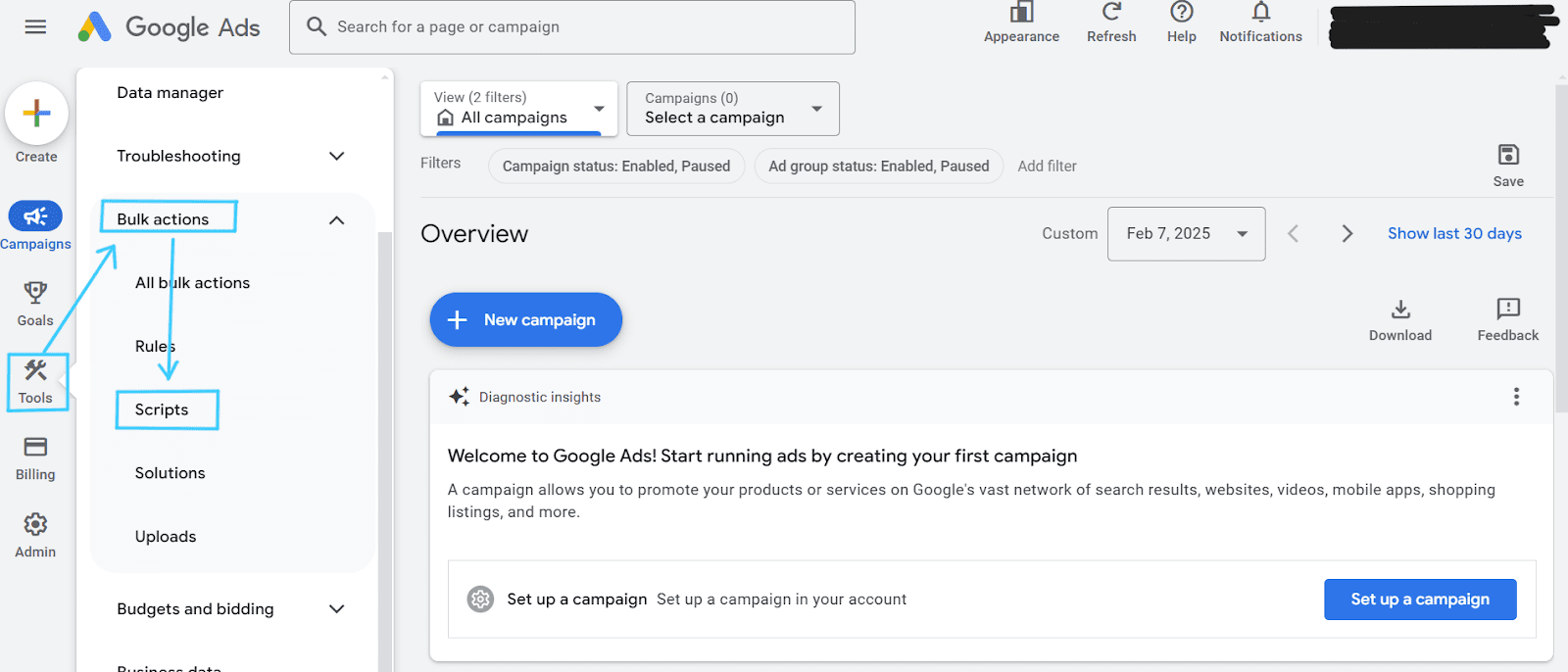
Scripts run in a browser-based IDE accessible from Tools → Bulk Actions → Scripts. The environment is standard JavaScript — ES6 syntax, array methods, string manipulation — extended with Google-specific APIs. The primary one is AdsApp, which gives read and write access to campaigns, ad groups, keywords, ads, and reporting data.
Every script has one required function:
function main() {
// your logic here
}
Everything runs inside main(). Two ways to interact with account data: the iterator pattern and the reporting API. Iterators work like this:
var campaigns = AdsApp.campaigns()
.withCondition('Status = ENABLED')
.get();
while (campaigns.hasNext()) {
var campaign = campaigns.next();
Logger.log(campaign.getName());
}
The reporting API is faster for read-only pulls and uses GAQL — Google Ads Query Language, which replaced AWQL in 2020:
var query = 'SELECT campaign.name, metrics.cost_micros '
+ 'FROM campaign '
+ 'WHERE segments.date DURING LAST_7_DAYS';
var rows = AdsApp.search(query);
while (rows.hasNext()) {
var row = rows.next();
Logger.log(row.campaign.name + ': ' + row.metrics.cost_micros);
}
The hard execution limit is 30 minutes per run. For large accounts this matters — a script iterating over tens of thousands of keywords will hit that ceiling before finishing. The fix is either switching to GAQL reporting queries (significantly faster than iterators) or batching across multiple runs using PropertiesService to store state between executions. Per Google's official quota documentation, each account supports up to 250 authorized scripts, and iterators return a maximum of 50,000 results per selector.
For MCC-level management, executeInParallel() runs the same function across multiple accounts simultaneously — the standard approach for Google Ads scripts for account audits across a client portfolio.
What Scripts Can and Cannot Do
Scripts have write access to bids, budgets, ad status, labels, and most campaign settings. They can send emails, write to Google Sheets for Google Ads scripts spreadsheet reporting, fetch external URLs, and call third-party APIs. For Google Ads scripts for reporting purposes, the combination of GAQL queries and Sheets output covers most agency reporting needs without any additional tools.
The limitations are worth knowing upfront. Scripts cannot create campaigns, ad groups, or ads from scratch — they modify existing entities but don't build account structure. They have no persistent memory between runs unless PropertiesService is used. Google Ads scripts permissions are tied to the access level of the authorizing user — a read-only user can authorize a script that reads data but cannot authorize one that makes changes. And the API quota caps at 10,000 get operations and 10,000 mutate operations per script run, which is a real constraint for bulk operations on large accounts.
One thing that catches people out with Google Ads scripts setup guide instructions: authorization is per-script, per-user. If the authorizing user's account access is revoked, the script stops running — silently, with no error notification to anyone else on the account.
When to Use Scripts
Scripts vs Automated Rules
Automated rules work on a single if-this-then-that logic: if a keyword's CPA exceeds $50, pause it. If CTR drops below 1%, send an email. For straightforward, single-condition actions, rules are faster to set up and need no coding. ALM Corp's 2026 analysis puts it directly: rules cover about 80% of standard automation tasks in a typical account.
The other 20% is where Google Ads Scripts become the right tool. Nils Rooijmans — who maintains 400+ free scripts and is one of the most referenced practitioners in the space — draws the line clearly: rules are static triggers, scripts are dynamic logic. The difference matters most in four situations.
When the condition requires more than one variable evaluated together. A rule can pause a keyword when CPA is high, but it can't pause a keyword only when CPA is high and impression share is above 60% — which would indicate the problem isn't competitiveness but ad relevance or landing page quality. A script handles that conditional logic without any workaround.
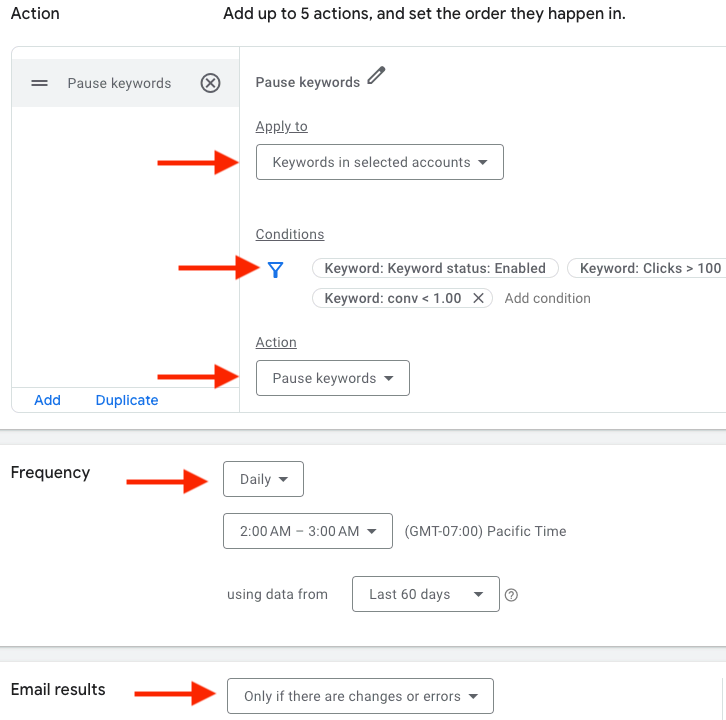
When the action needs to run across multiple campaigns or the entire account simultaneously. Rules operate one campaign at a time. Google Ads automation scripts run across the full account structure in a single execution — useful for Google Ads scripts for search campaigns and Google Ads scripts for shopping campaigns where consistent logic needs to apply everywhere at once.
When the output needs to go somewhere specific. Rules send a generic email notification. A script can write a formatted report to a Google Sheet, post a Slack message with campaign-level detail, or update a dashboard with structured data. For teams managing multiple clients, this difference alone justifies scripts over rules.
When external data needs to be part of the logic. Rules only see Google Ads data. Scripts can pull exchange rates, weather data, inventory levels, or competitor pricing from external APIs and factor that into bid or budget decisions in real time. This is the foundation of more advanced Google Ads scripts for bids workflows used by larger ecommerce accounts.
One failure mode worth knowing about: rules can break silently. Infinite Media Resources' 2025 analysis documented cases where automated rules stopped evaluating conditions after account restructuring — a renamed campaign, a changed label — with no error notification. The rule appeared active in the interface but was doing nothing. Scripts with proper logging make failures visible; a script that stops running generates an execution error in the run history.
GROAS.ai's 2026 benchmarks add useful context: 12% of PPC professionals use custom scripts, and 68% of those spend more than five hours per month on maintenance. That's the honest trade-off — scripts are more powerful than rules but require more ownership. For accounts where the monitoring gap is real and the budget justifies it, that trade-off is straightforward.
How to Write Your Own Scripts — Examples
The five patterns below cover the highest-value use cases for Google Ads scripts examples in real account management. Each script is functional and adaptable — change the threshold values and notification targets to match the account.
Pacing Alert Pattern
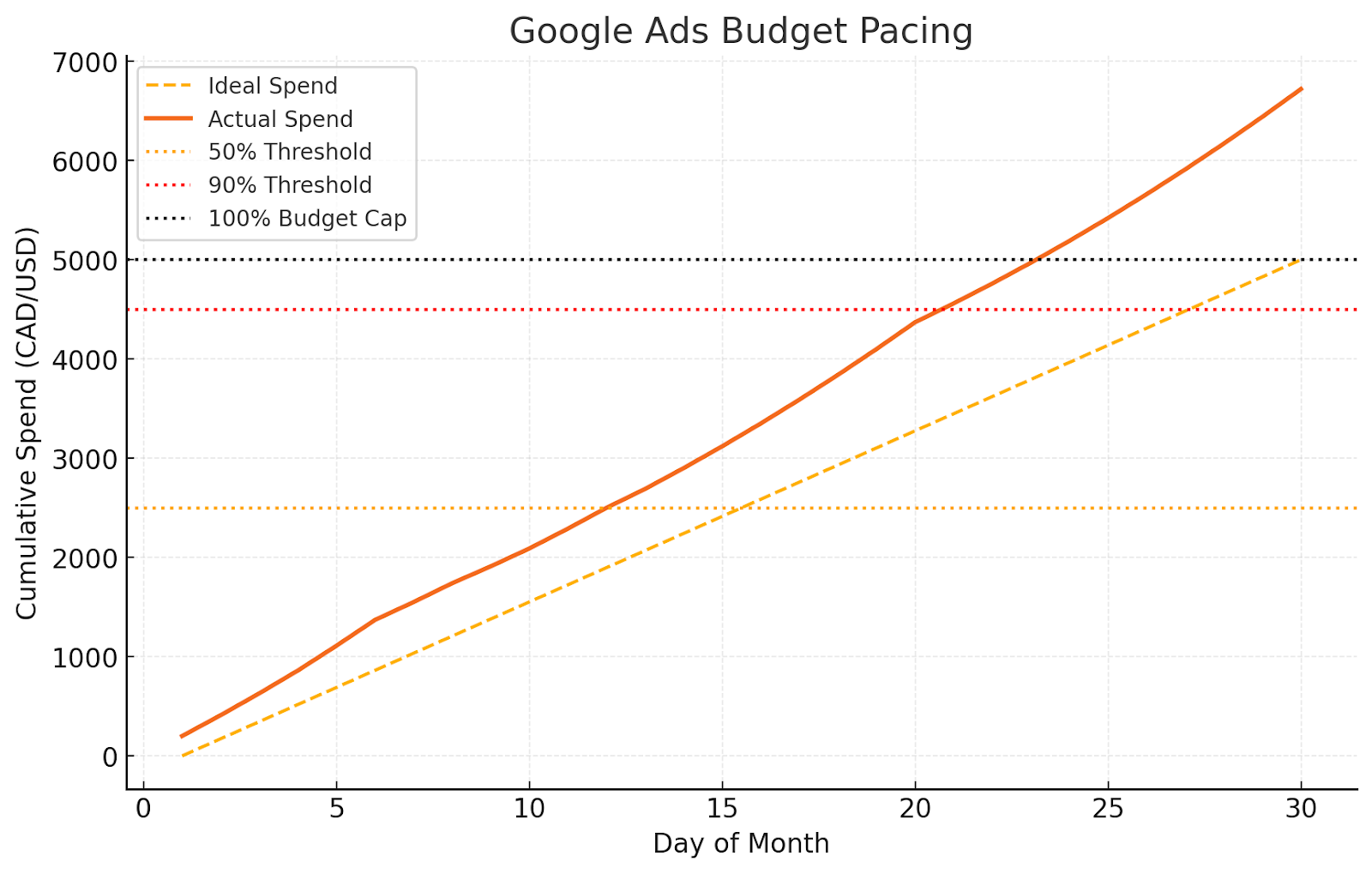
Budget pacing is the most immediately useful application of Google Ads scripts for budget monitoring and Google Ads scripts for pacing. The logic: compare actual month-to-date spend against expected spend based on how far through the month you are, and alert if the gap exceeds a defined threshold.
function main() {
var THRESHOLD_PERCENT = 15; // alert if pacing differs by >15%
var EMAIL = 'your@email.com';
var TIMEZONE = 'America/New_York';
var today = new Date();
var daysInMonth = new Date(today.getFullYear(), today.getMonth() + 1, 0).getDate();
var dayOfMonth = today.getDate();
var monthProgress = dayOfMonth / daysInMonth;
var campaigns = AdsApp.campaigns()
.withCondition('Status = ENABLED')
.get();
var alerts = [];
while (campaigns.hasNext()) {
var campaign = campaigns.next();
var budget = campaign.getBudget().getAmount();
var monthlyBudget = budget * daysInMonth;
var stats = campaign.getStatsFor(
Utilities.formatDate(
new Date(today.getFullYear(), today.getMonth(), 1),
TIMEZONE, 'yyyy-MM-dd'),
Utilities.formatDate(today, TIMEZONE, 'yyyy-MM-dd')
);
var actualSpend = stats.getCost();
var expectedSpend = monthlyBudget * monthProgress;
var pacingRatio = actualSpend / expectedSpend;
if (Math.abs(pacingRatio - 1) > THRESHOLD_PERCENT / 100) {
var status = pacingRatio > 1 ? 'OVERPACING' : 'UNDERPACING';
alerts.push(campaign.getName() + ' — ' + status +
' (' + Math.round(pacingRatio * 100) + '% of expected)');
}
}
if (alerts.length > 0) {
MailApp.sendEmail(EMAIL, 'Budget Pacing Alert', alerts.join('\n'));
}
}
Three implementation details matter here. First, TIMEZONE must match the account timezone exactly — OnlineVancity's August 2025 analysis of pacing script failures identified timezone mismatch as the single most common cause of incorrect spend calculations. Second, set thresholds in tiers: 50% through the month at 40% spend is a different severity than 90% through the month at 40% spend — a more advanced version uses two thresholds and labels alerts accordingly. Third, on notification hygiene: if this runs hourly and fires every run, the emails become noise within a day. Use PropertiesService to store the last alert timestamp and suppress repeat alerts within a four-hour window.
Disapproval Monitoring Pattern
Disapproved ads can silently kill performance for hours before anyone notices manually. This script checks all active ads for disapprovals and includes the specific policy reason — which determines whether the fix is a landing page change, an ad rewrite, or an appeal. This is the core use case for Google Ads scripts for ads review.
function main() {
var EMAIL = 'your@email.com';
var disapproved = [];
var ads = AdsApp.ads()
.withCondition('PolicySummary.ApprovalStatus = DISAPPROVED')
.withCondition('Status = ENABLED')
.withCondition('AdGroupStatus = ENABLED')
.withCondition('CampaignStatus = ENABLED')
.get();
while (ads.hasNext()) {
var ad = ads.next();
var adGroup = ad.getAdGroup();
var campaign = adGroup.getCampaign();
var policies = ad.getPolicySummary().getApprovalIssues();
var reasons = [];
while (policies.hasNext()) {
var issue = policies.next();
reasons.push(issue.getName());
}
disapproved.push(
'Campaign: ' + campaign.getName() + '\n' +
'Ad Group: ' + adGroup.getName() + '\n' +
'Headline: ' + ad.getHeadlinePart1() + '\n' +
'Reason: ' + reasons.join(', ') + '\n'
);
}
if (disapproved.length > 0) {
MailApp.sendEmail(
EMAIL,
'Disapproved Ads — ' + disapproved.length + ' found',
disapproved.join('\n---\n')
);
}
}
The policy-aware element is pulling the specific reason rather than just the disapproval flag. PPC.io's 2026 guide flags a common mistake: submitting a review request before understanding the policy trigger. "Healthcare and medicines," "Financial products and services," and "Destination not working" each require a different remediation path — knowing which one is triggered before acting saves the review cycle. For accounts in regulated verticals where disapprovals are frequent, schedule this script to run every two hours during business hours.
Broken URL Detection Pattern
Dead landing pages burn budget without generating a single conversion. This script checks final URLs across active ads and alerts on 4xx and 5xx responses. The use case covers Google Ads scripts for conversions tracking checks at the most basic level — if the destination doesn't load, conversion tracking is irrelevant.
function main() {
var EMAIL = 'your@email.com';
var RATE_LIMIT_MS = 1000;
var MAX_CHECKS = 100;
var broken = [];
var ads = AdsApp.ads()
.withCondition('Status = ENABLED')
.withCondition('AdGroupStatus = ENABLED')
.withCondition('CampaignStatus = ENABLED')
.get();
var checked = 0;
while (ads.hasNext() && checked < MAX_CHECKS) {
var ad = ads.next();
var url = ad.urls().getFinalUrl();
if (!url) continue;
try {
var response = UrlFetchApp.fetch(url, {
muteHttpExceptions: true,
followRedirects: true
});
var code = response.getResponseCode();
if (code === 404 || code === 500 || code === 0) {
broken.push(
ad.getAdGroup().getCampaign().getName() +
' → ' + ad.getAdGroup().getName() +
' → ' + url + ' (HTTP ' + code + ')'
);
}
} catch(e) {
broken.push(url + ' — fetch error: ' + e.message);
}
Utilities.sleep(RATE_LIMIT_MS);
checked++;
}
if (broken.length > 0) {
MailApp.sendEmail(EMAIL, 'Broken URLs Detected', broken.join('\n'));
}
}
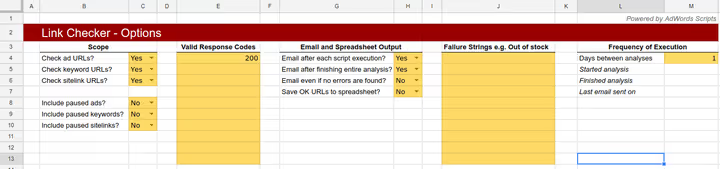
MAX_CHECKS prevents hitting the 30-minute execution limit on large accounts — set it based on account size and run daily to cycle through all ads over time. The one-second sleep between requests is rate awareness in practice: crawling 100 URLs without delay can trigger bot detection on the destination server, which produces false positives in the broken URL report.
Search Query Mining Pattern
This script pulls search terms from the last 14 days, identifies queries with clicks but zero conversions above a minimum click threshold, and writes them to a Google Sheet as negative keyword candidates. It's the practical implementation of Google Ads scripts for negative keywords without manual search term report reviews — and directly relevant for Google Ads scripts for keywords management at scale.
function main() {
var SHEET_URL = 'YOUR_GOOGLE_SHEET_URL';
var MIN_CLICKS = 5;
var sheet = SpreadsheetApp.openByUrl(SHEET_URL)
.getActiveSheet();
sheet.clearContents();
sheet.appendRow([
'Campaign', 'Ad Group', 'Search Term',
'Clicks', 'Conversions', 'Cost', 'Action'
]);
var query =
'SELECT campaign.name, ad_group.name, ' +
'search_term_view.search_term, ' +
'metrics.clicks, metrics.conversions, metrics.cost_micros ' +
'FROM search_term_view ' +
'WHERE segments.date DURING LAST_14_DAYS ' +
'AND metrics.clicks >= ' + MIN_CLICKS + ' ' +
'AND metrics.conversions = 0 ' +
'ORDER BY metrics.clicks DESC ' +
'LIMIT 200';
var rows = AdsApp.search(query);
while (rows.hasNext()) {
var row = rows.next();
sheet.appendRow([
row.campaign.name,
row.ad_group.name,
row.search_term_view.search_term,
row.metrics.clicks,
0,
(row.metrics.cost_micros / 1000000).toFixed(2),
'Review for negative'
]);
}
}
Nils Rooijmans recommends scheduling this script every Monday at 6AM — it gives a clean weekly review cadence without the noise of daily runs. The output sheet becomes the input for a weekly negative keyword hygiene session: review the list, add confirmed negatives at campaign or account level, done. For Google Ads scripts for performance max accounts, the same GAQL query works against PMax search term data — Rooijmans' May 2025 PMax script uses an identical structure to surface non-converting queries in what is otherwise a black-box campaign type.
Performance Anomaly Detection Pattern
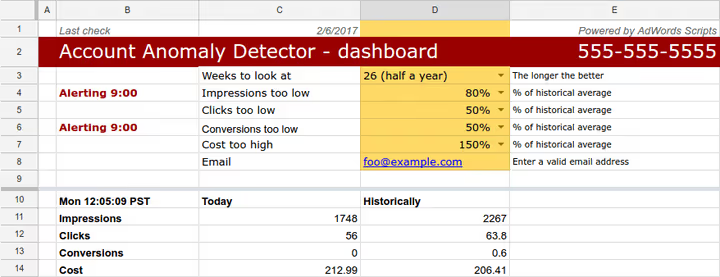
This script compares the last seven days of performance against a 28-day baseline and flags campaigns where CTR, CPA, or conversions have shifted beyond defined thresholds. The core use case is Google Ads scripts for alerts on performance drops before they compound — Smart Bidding instability, Quality Score changes, and seasonal anomalies all show up here before they're visible in standard reporting.
function main() {
var EMAIL = 'your@email.com';
var CTR_THRESHOLD = 0.20;
var CPA_THRESHOLD = 0.25;
var CONV_THRESHOLD = 0.30;
var alerts = [];
var campaigns = AdsApp.campaigns()
.withCondition('Status = ENABLED')
.get();
while (campaigns.hasNext()) {
var campaign = campaigns.next();
var name = campaign.getName();
var recent = campaign.getStatsFor('LAST_7_DAYS');
var baseline = campaign.getStatsFor('LAST_28_DAYS');
var recentCtr = recent.getCtr();
var baselineCtr = baseline.getCtr();
var recentConv = recent.getConversions();
var baselineConvWeekly = baseline.getConversions() / 4;
var recentCpa = recentConv > 0 ?
recent.getCost() / recentConv : null;
var baselineCpa = baselineConvWeekly > 0 ?
(baseline.getCost() / 4) / baselineConvWeekly : null;
if (baselineCtr > 0 &&
Math.abs(recentCtr - baselineCtr) / baselineCtr > CTR_THRESHOLD) {
alerts.push(name + ': CTR shifted ' +
Math.round((recentCtr - baselineCtr) / baselineCtr * 100) + '%');
}
if (baselineCpa && recentCpa &&
Math.abs(recentCpa - baselineCpa) / baselineCpa > CPA_THRESHOLD) {
alerts.push(name + ': CPA shifted ' +
Math.round((recentCpa - baselineCpa) / baselineCpa * 100) + '%');
}
if (baselineConvWeekly > 0 &&
(baselineConvWeekly - recentConv) / baselineConvWeekly > CONV_THRESHOLD) {
alerts.push(name + ': Conversions down ' +
Math.round((baselineConvWeekly - recentConv) /
baselineConvWeekly * 100) + '%');
}
}
if (alerts.length > 0) {
MailApp.sendEmail(EMAIL, 'Performance Anomaly Alert', alerts.join('\n'));
}
}
Percentage deviation from each campaign's own baseline is more reliable than absolute thresholds for Google Ads scripts for reporting because it scales with account size. A $100/day campaign and a $10,000/day campaign have completely different absolute conversion volumes — a 30% drop is meaningful at both scales, while any fixed absolute threshold would either miss problems in small campaigns or fire constantly in large ones. Lunio's 2025 research on anomaly detection scripts recommends a minimum 28-day baseline period specifically because shorter windows don't smooth out weekly seasonality patterns.
Testing, Deployment, and Maintenance
Preview Mode, Staged Rollouts, and Rollback Strategy
Every script runs in preview mode when executed from the IDE — the script goes through all its logic and logs what it would do, but makes zero changes to the account. This is the most important safety mechanism in the Google Ads scripts setup guide workflow, and the first thing to use before deploying anything that touches bids, budgets, or ad status.
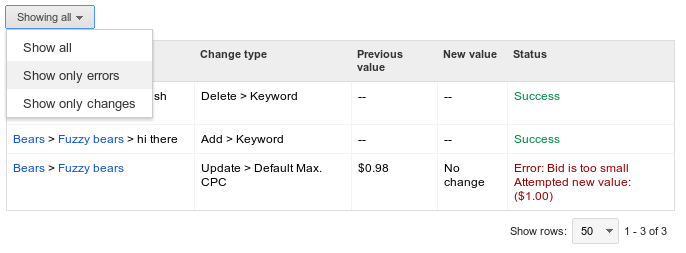
Preview output splits into two panels. The Logs panel shows everything written via Logger.log() — the script's internal reasoning. The Changes panel shows every account modification the script would have made: entity name, field, value before, value after. Reading both before deploying is the difference between a script that works as intended and one that silently pauses 200 keywords because of an off-by-one error in a date range calculation.
For scripts that modify large numbers of entities, staged rollout is worth the extra setup time. The approach Frederick Vallaeys of Optmyzr recommends: add a label like script-test to a subset of campaigns — 5 to 10% of the account — modify the script to only process campaigns with that label, run it live for one week, review results, then expand. For Google Ads scripts for bids that interact with Smart Bidding, this matters more than for read-only scripts: unexpected interactions between custom bid logic and Google's own bidding signals can produce results that only become visible over several days of data.
Rollback is simpler than it sounds. For any script that modifies campaign settings, the script should write the old value to a Google Sheet before applying the new one — entity name, field, previous value, new value, timestamp. If something goes wrong, a second script reads from that sheet and restores the previous state. This pattern takes an extra 15 minutes to implement and has saved accounts from significant unintended changes more than once.
Logging, Debugging, and Common Error Classes
Logger.log() is the primary debugging tool. It writes to the Logs panel during execution and is readable in the script's run history for up to 30 days after the fact. For production scripts, log the key decision points — which entities were evaluated, what values triggered an action, what changes were made. Without this, debugging a script that behaved unexpectedly three days ago is guesswork.
The most common error classes in Google Ads Scripts fall into predictable categories. Quota exceeded errors happen when a script exceeds 10,000 get or mutate operations — the fix is switching from iterator chains to GAQL reporting queries wherever possible, since reporting calls don't count against the same quota. Execution timeout at 30 minutes affects large accounts running iterator-heavy scripts — batching with PropertiesService across multiple runs solves this. NullPointerException errors typically mean an entity was deleted or modified between the selector query and the access call — wrap entity access in try-catch for any production script.
The error class most specific to adwords scripts 2026 maintenance is API deprecation. Nils Rooijmans documented a common real-world case: "Call to GoogleAdsService.Search failed: Version v[X] is deprecated" — a script that ran correctly for months silently returns empty results or throws an error after a Google Ads API version update. AWQL-based scripts are the most common victim of this; any script still using AdsApp.report() with AWQL syntax instead of AdsApp.search() with GAQL is at risk. The fix is straightforward but requires someone to notice the problem first, which is why scheduled Google Ads scripts for reporting should always include a confirmation log line — "X campaigns evaluated, Y alerts sent" — so a run that returns nothing stands out immediately.
One failure mode Google's own documentation flags: scripts run in best-effort mode. A script that fails to apply one change will log the error and continue executing rather than stopping. This means a script can appear to have run successfully while having silently skipped half its intended actions. Checking the Changes log after every new deployment — not just the Logs panel — catches this.
Maintenance Schedule — Ownership, Updates, Documentation
Scripts that aren't maintained break silently and often invisibly. A practical maintenance schedule for accounts with active scripts: quarterly review of all scripts against Google Ads release notes for API changes, a preview mode test run to confirm outputs still match expectations, and a check of the run history for any silent failures in the past 30 days.
Ownership documentation matters more than most teams expect. A script with no named owner and no inline comments is a liability when the person who wrote it leaves. At the top of every script, four lines are enough:
javascript
// PURPOSE: Alerts on budget pacing deviations >15%
// SCHEDULE: Daily at 8AM account timezone
// OWNER: name@company.com
// LAST REVIEWED: 2026-01-15
For scripts sourced from external libraries — Nils Rooijmans' collection, the Brainlabs GitHub repository, Frederick Vallaeys' free script archive — check the publication date and run in preview before deploying. Community scripts are valuable but not always updated immediately after API changes. PPC.io's 2026 guide recommends a naming convention that makes the schedule and function obvious at a glance: "Daily Budget Pacing Alert" rather than "Script 1." In accounts with 10+ scripts, the difference between a well-named script list and an unnamed one is the difference between a five-minute audit and a 45-minute one.
For Google Ads scripts schedule email reports that deliver to clients or stakeholders, build in a delivery confirmation: the script logs the recipient, timestamp, and row count of the report sent. If a scheduled report stops arriving, the run history shows exactly when and why — rather than the client noticing the absence three weeks later.
Conclusion
Google Ads Scripts aren't a replacement for good account management — they're the layer that makes good account management sustainable at scale. Smart Bidding handles bid optimization, Performance Max handles placement decisions, automated rules handle simple threshold actions. Google Ads Scripts handle everything those tools can't: custom monitoring logic, cross-campaign data aggregation, external data integration, and structured reporting that goes exactly where it needs to go.
The practical starting point for most accounts is a pacing alert and a disapproval monitor. Both are low-risk, immediately useful, and easy to validate in preview mode before deployment. From there, the search query mining pattern adds value for any account with meaningful broad or phrase match spend. The anomaly detection script is worth adding once there's enough conversion volume to make the baseline comparison meaningful — typically accounts spending $5,000/month or more.
GROAS.ai's 2026 analysis of Google's automation direction makes the broader point well: Google's AI optimises toward Google's goals, which overlap with advertiser goals but aren't identical. Scripts are the tool that gives advertisers independent visibility and control on top of that automation layer — not to fight it, but to monitor it honestly.
For anyone newer to Google Ads scripts tutorial workflows, the entry point is straightforward: open the IDE, paste the pacing alert script from this guide, change the email address and timezone, run it in preview, read the logs. The whole process takes under 20 minutes. Everything else — staged rollouts, PropertiesService batching, external API integration — builds from that foundation.
The best Google Ads scripts aren't necessarily the most complex ones. They're the ones that run reliably, alert on the right things, and get maintained quarterly. A five-line budget monitor that fires every time spend goes off-track is worth more than a sophisticated ML-based bidding script that breaks after an API update and no one notices for three weeks.
FAQ
What are Google Ads Scripts used for?
Google Ads Scripts automate monitoring, reporting, and bulk account changes that would otherwise require manual work. Common applications include budget pacing alerts, disapproved ad notifications, broken URL detection, search term analysis for Google Ads scripts for negative keywords, performance anomaly detection, and scheduled reporting to Google Sheets. They're most valuable for accounts where the frequency of manual checks required to catch problems early would be impractical.
How do Google Ads Scripts differ from automated rules?
Automated rules handle single-condition logic — if X exceeds threshold, do Y. Google Ads Scripts handle multi-condition logic, cross-campaign operations, external data integration, and custom output formatting. Rules run at most once per day; scripts can run hourly. Rules can't interact with Google Sheets or external APIs; scripts can. For straightforward threshold actions, rules are faster to set up. For anything more complex — including Google Ads scripts for search campaigns monitoring across an entire account — scripts are more reliable and more capable.
Are Google Ads Scripts free to use?
Yes. The scripting environment is included in every Google Ads account at no cost. Google doesn't charge for script execution — the service is free, with quota limits in place to manage server load. Third-party libraries from Nils Rooijmans (400+ scripts), Brainlabs' GitHub repository, and Frederick Vallaeys' free archive are also free. The only real cost is developer time for writing, testing, and maintaining scripts.
What are common limitations of Google Ads Scripts?
The main constraints: 30-minute execution limit per run, 250 authorized scripts per account, 50,000 results per iterator selector, and 10,000 get/mutate operations per run. Scripts cannot create new campaigns or ad groups from scratch. Google Ads scripts permissions are tied to the authorizing user's access level — if that user's access is revoked, the script stops running silently. The minimum scheduling interval is hourly; it's not possible to specify an exact minute within the hour.
How do I schedule Google Ads Scripts to run automatically?
In the Scripts interface, click the pencil icon next to the frequency field below the script editor. Options are: once, hourly, daily, weekly, or monthly. For Google Ads scripts schedule email reports, daily at a fixed time is the standard setup. For budget pacing and disapproval monitoring, hourly is more appropriate during active campaign hours. Google's official documentation notes that scheduled changes can't be undone automatically — always run in preview and confirm the output before setting a live schedule.


