


Choosing a Payment Method for Google Ads — 2026 Guide
Introduction
What you will learn and who this is for
Hey there, do you know that choosing a payment method for Google Ads has become much easier in 2026? In this guide, you will learn how to make confident decisions on automatic payments vs manual payments, determine your eligibility for monthly invoicing, and how to add or switch methods without disrupting campaigns. You will also be informed about new payment alternatives like using cryptocurrency through YeezyPay's agency accounts. Be rest assured that we will cover every aspect on how to pay for Google Ads and manage your billing smoothly without being a victim of common pitfalls.
This article is written for advertisers who want clarity on Google Ads billing options, how to set them up, and which options best fit different business needs. Whether you’re a small business, an agency, or an enterprise, the goal is to help you handle practical issues around your Google Ads payment method.
How Google Ads billing works and what changed by 2026
Advertisers can choose between prepay and postpay models to fund their campaigns. In 2026, billing has become more flexible while also requiring closer attention to compliance and account setup. Agencies can benefit from consolidated billing, while businesses can manage records more effectively with features like invoice exports and audit log tracking.
Quick Chooser: The Right Payment Method in One Minute
In case you have just a minute to decide how to pay for your Google Ads, the first thing to consider is how much control you want over your cash flow, and then you can also think about convenience. Let’s introduce you to the four options you can choose from in 2026 and help you make a decision.
Decision tree and trade-offs (cost, risk, control, eligibility)
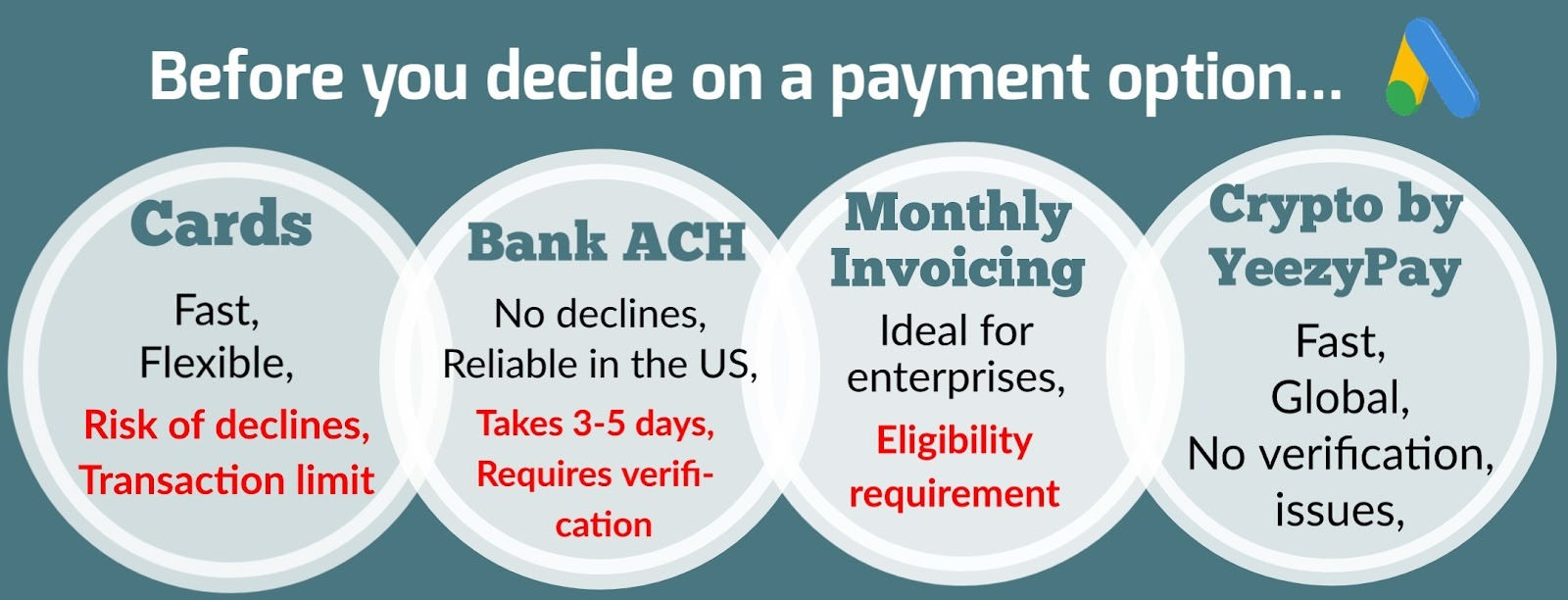
Credit and debit cards remain the fastest way to get started as they are widely accepted and instantly verified. The trade‑off is that cards can be declined due to insufficient funds or mismatched billing details. Although Google enforces CVV verification, 3D Secure (3DS) and address verification (AVS) in order to improve security, there is still the risk of occasional declines and disruptions due to required security checks.
If you prioritize predictable processing when choosing a payment method for Google Ads, bank account payments can be a reliable option because they allow direct debits from your account and reduce the risk of card declines. However, it requires an initial verification through micro‑deposits, and posting times can take several business days. This makes it less ideal if you need instant campaign funding, but more reliable for long‑term advertisers who want predictable billing.
Monthly invoicing on the other hand, proves to be an efficient model for enterprises that run larger campaigns. It consolidates charges into a single invoice and this is particularly good for enterprises with procurement departments or the need to attach PO numbers to invoices. The only trade‑off for monthly invoicing on Google Ads is eligibility. You need to first go through an application that requires some serious documentation and you must pass Google’s credit review.
In case you are facing restrictions with the conventional methods, the good news is that there is now a flexible option to use cryptocurrency through reliable online service like YeezyPay’s agency accounts. It is smooth and bypasses common verification issues while offering global accessibility. We’ll get to more details on these soon.
Google Ads Billing Models Explained
Prepay vs Postpay and Billing Thresholds
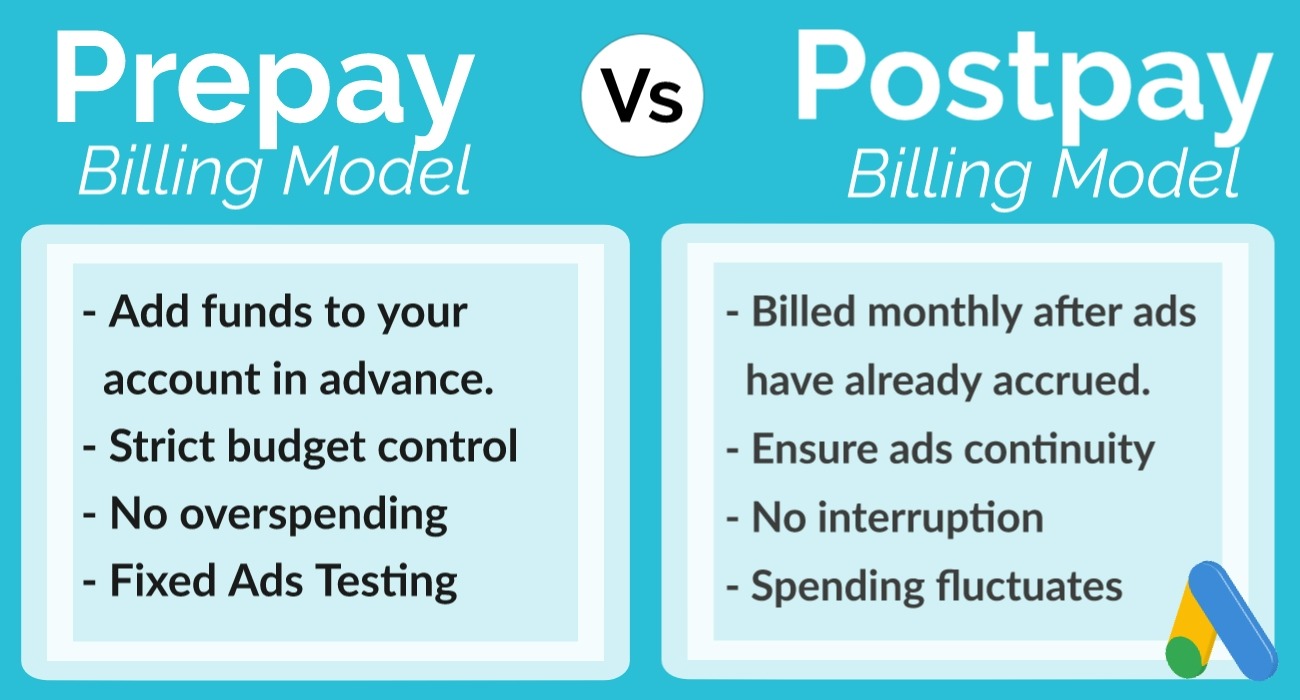
Advertisers can choose between prepay and postpay in Google Ads. With prepay, you load funds into your account before running your ads, and it is certain that campaigns will be paused when the balance is used up. This manual model is popular among small business owners who want strict budget control. For example, a small bakery might prepay as little as $200 to ensure that they never overspend at the end of the month.
Postpay billing is a more common option with established advertisers who prefer being charged by Google after running ads. The charges either occur when they hit a billing threshold or on your monthly autopay date. Your billing threshold is a set amount, that will be the maximum that you allow Google to spend for the month, you can always adjust it in your billing settings. For instance, an e-commerce store that is rapidly scaling their campaigns might prefer postpay, and set a threshold of $1,000 in order to avoid constant top-ups.
Primary and backup methods, charges and refunds
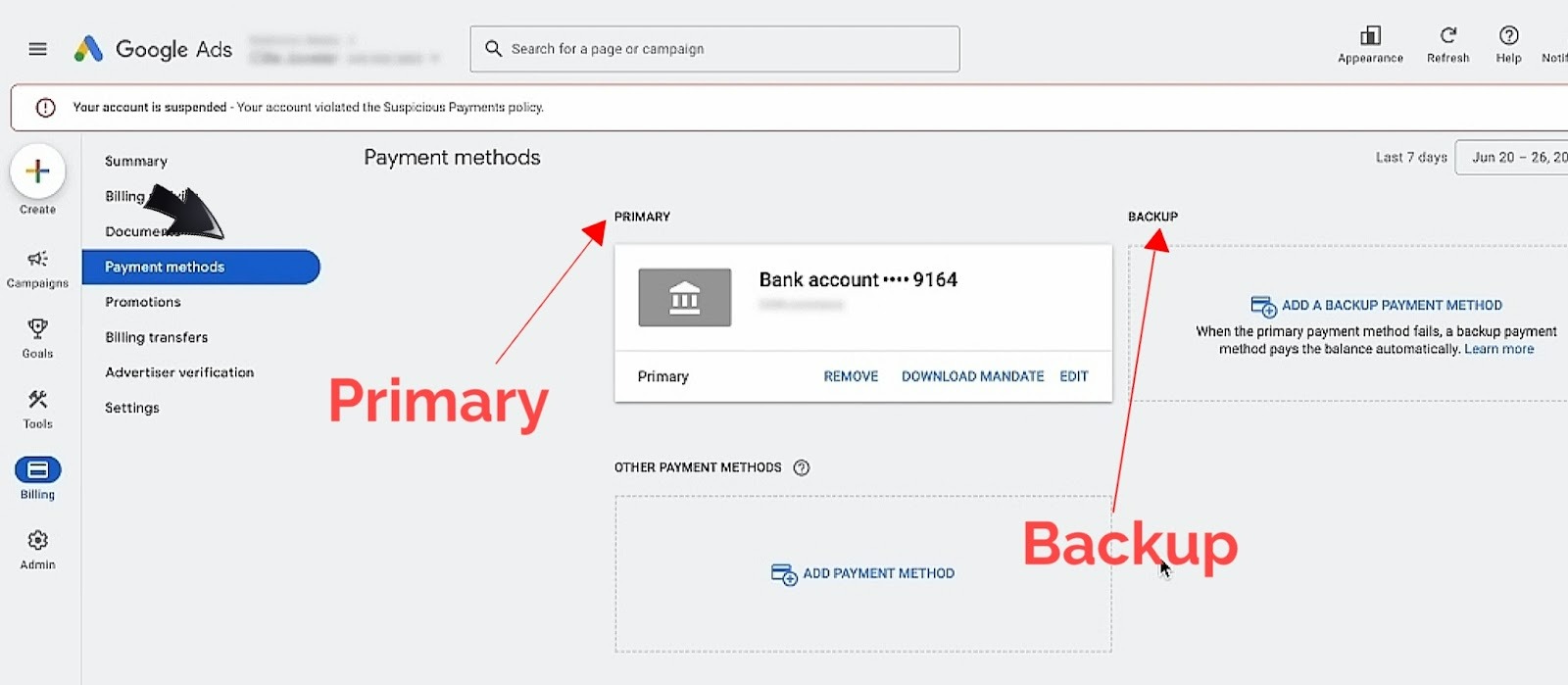
As a smart advertiser, it is important to set both a primary payment method and a backup payment method Google Ads. If your primary card fails, Google will automatically charge the backup to avoid campaign suspension. You can set this up by going to Billing > Payment methods > Add payment method, then select “Set as backup.” For example, a freelancer might use a debit card as primary and a virtual card as backup to ensure continuity.
One good thing about Google is their refund policy Google Ads payments. If you cancel a campaign or mistakenly overpay, your funds are returned between two to four weeks via the same method that you paid with. For example, if you prepaid $800 but only spent $500, the remaining $300 will be refunded as soon as you close the account.
Payment Methods Overview
-
Credit/Debit Cards: pros, cons, limits, security best practices
The most common way to set up billing is to pay Google Ads with debit card. But for you to settle for it as your primary method, let’s go over the pros and cons.
|
Pros |
Cons |
|
|
-
Bank Account: setup, verification, posting times
If bank account payments are available in your billing country, they can be a reliable alternative for Google Ads payments. This method often offers more stability than cards because it reduces the chance of card-related declines. To set it up, go to Billing > Payment methods, add your bank account details, and complete any verification steps required in your region. Verification and posting times vary by market, so it is important to plan ahead before launching or scaling campaigns.
You must bear in mind that posting times are slower than that of cards and payments can take up to 5 business days to clear. The catch here is that if you are switching from cards to ACH as a small marketing agency, you will be avoiding those repeated declines due to daily card limits. So, you will be able to process your monthly spends without interruptions, even if it means planning ahead for the posting delay.
-
Monthly Invoicing: eligibility, credit line, terms, requirements
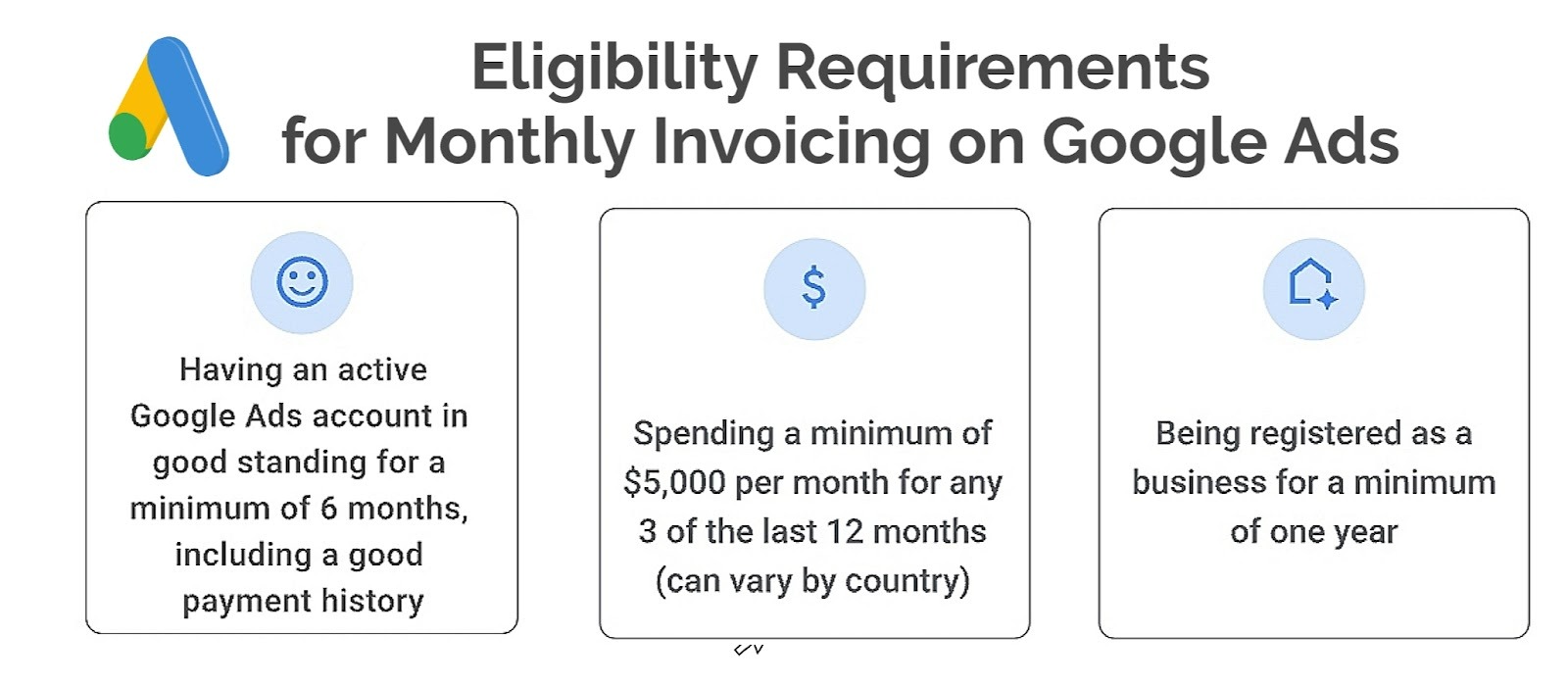
Monthly invoicing Google Ads is reserved for advertisers with consistent spend and good payment history. It is ideal for enterprises that need more flexibility and centralized control over large ad spends. To qualify, your account must meet Google’s minimum spend thresholds, and pass a credit review. During the application process, you may be asked to provide business registration details and recent financial statements. Once approved, you are assigned invoice terms and credit line Google Ads, meaning you have 30 days from the invoice date to pay.
This setup is especially useful for enterprises and agencies that manage multiple accounts, since it allows them to consolidate charges, attach PO numbers, and allocate costs across departments. For example, a multinational retailer might use monthly invoicing to run campaigns in different regions under one billing profile, while its finance team reconciles spend against internal budgets without worrying about daily card limits or ACH posting delays.
-
Paying for Google Ads Using Cryptocurrency through YeezyPay’s Agency Accounts
Advertisers can now use cryptocurrency through YeezyPay’s agency accounts. This option is especially useful for those who face restrictions with cards or banks. It is as simple as you depositing USDT or other supported crypto currency into YeezyPay, and we will directly credit your Google Ads agency account.
Are you getting the picture? We’re talking about a whole new level of advantages in terms of speed and global accessibility. There are no issues with verification, since YeezyPay handles compliance on the backend. For example, an affiliate marketer who struggles with card declines can fund campaigns instantly with crypto. This makes it a unique addition to the standard Google Ads payment methods, giving you more flexibility as an advertiser in 2026.
Comparing Methods for Common Scenarios
Solo advertisers and SMBs
As established earlier, individual advertisers and small businesses require a simple payment method so as to be in control of their cash flow. This is why credit or debit cards will be the most practical choice for them. Cards will allow you to instantly start campaigns and manage spend without complex approvals.
For more control over cashflow, the use of cards go with manual payments (prepay), ensuring that you never exceed your budget. A local café, for instance, might load $300 into their account and run ads until the fund is used up. This prevents overspending while making your billing straightforward.
Agencies with MCC and consolidated billing
For agencies that manage multiple client accounts, one good way to set up billing in Google Ads is to use the consolidated billing for agencies on MCC (manager account). This setup will allow you to use one billing profile ID for several accounts. It makes it easier to track spend by client, and apply cost centers or PO numbers. For instance, a digital agency that is handling ten clients can receive one consolidated invoice instead of ten separate ones, simplifying accounting and cash flow management.
Enterprises with procurement and cost centers
Large organizations are known to require monthly invoicing with a defined credit line. This aligns with procurement processes where invoices must include PO numbers through their finance teams. Enterprises also benefit from invoice consolidation, which allows multiple accounts or departments to be billed together. For example, a retail chain with regional marketing teams can consolidate all spend into one invoice, while still tagging costs to individual cost centers for internal reporting.
Nonprofits and education accounts
Nonprofits and educational institutions may qualify for special billing arrangements such as grants, credits, or alternative invoicing options, depending on their region and account status. These organizations may need to submit documentation confirming their legal and tax status. For example, a school running awareness campaigns may apply for invoicing terms while making sure its financial records and reporting requirements are handled correctly.
Set Up and Switch Guides
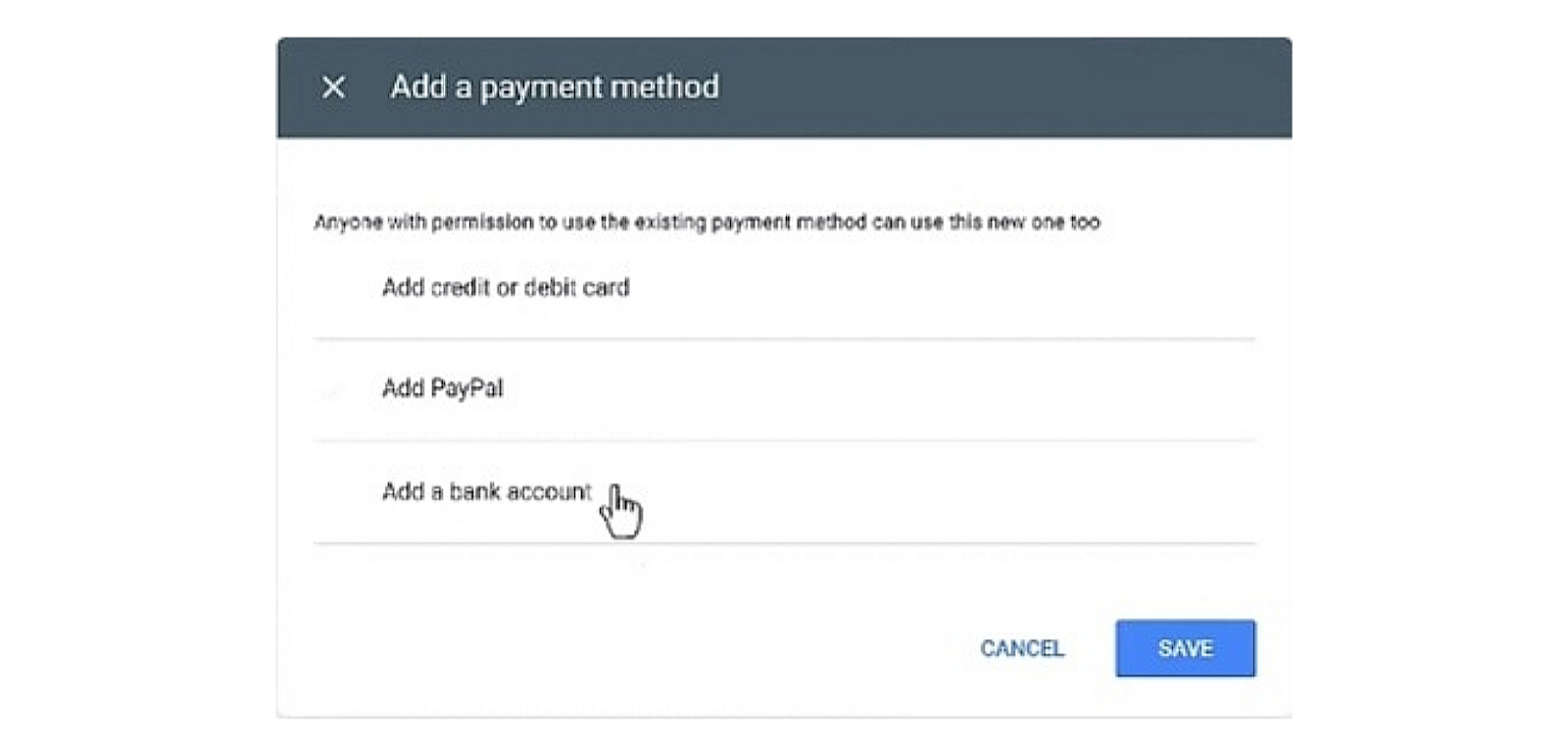
Add or change a card; set backup method
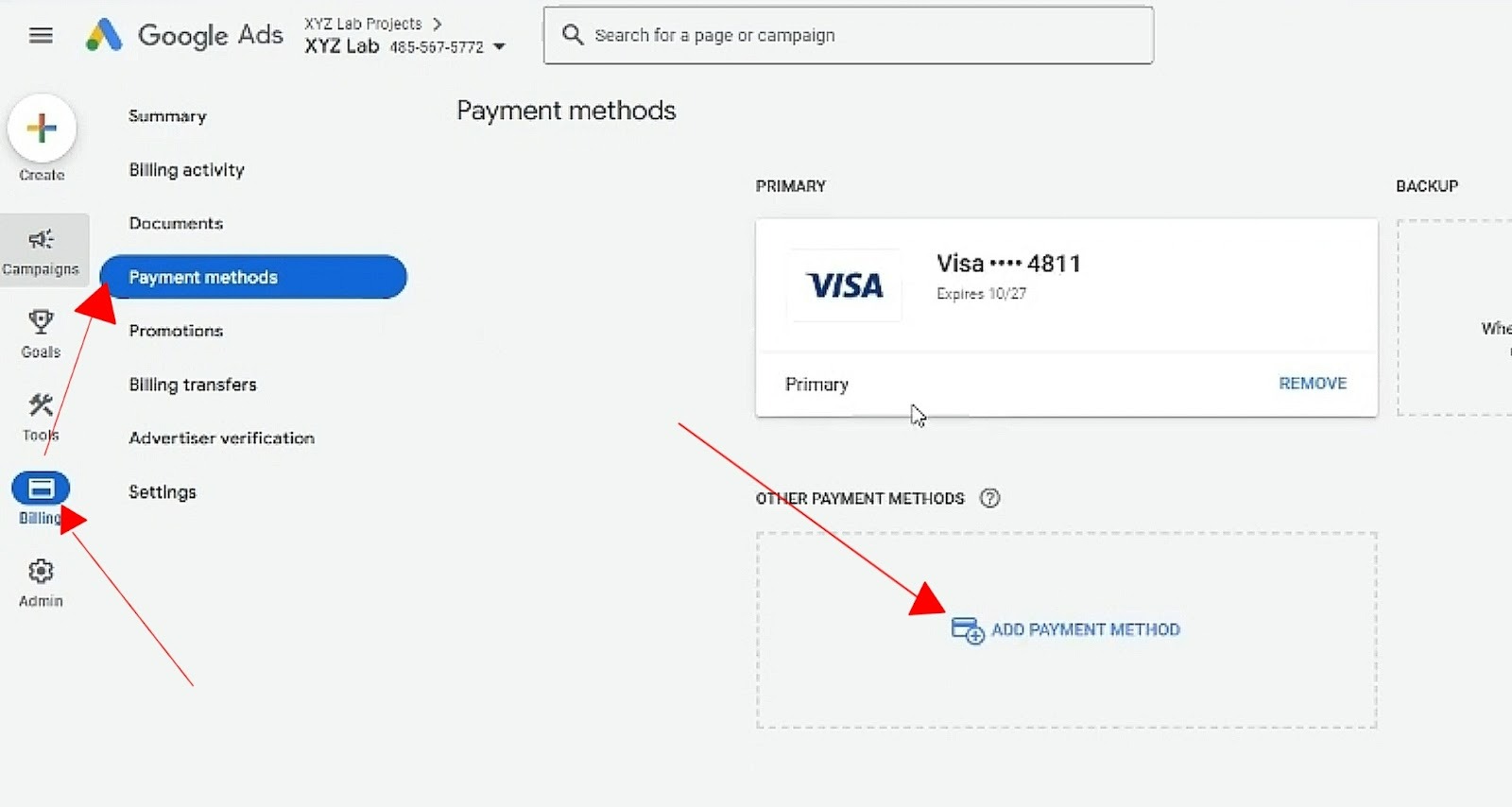
To add or update your card detail:
-
Go to Billing > Payment methods.
-
Click “Add payment method”.
-
Enter card details.
-
Select “Set as backup” or “Set as primary”.
Add and verify a bank account
To add a bank account in Google Ads:
-
Navigate to Billing > Payment methods > Add bank account.
-
Enter your bank account details.
-
Google may require a verification step before the account becomes active.
-
Once they appear in your account, return to Google Ads, enter the amounts, and verify.
-
After verification, ACH becomes active.
Apply for monthly invoicing; documents and checks
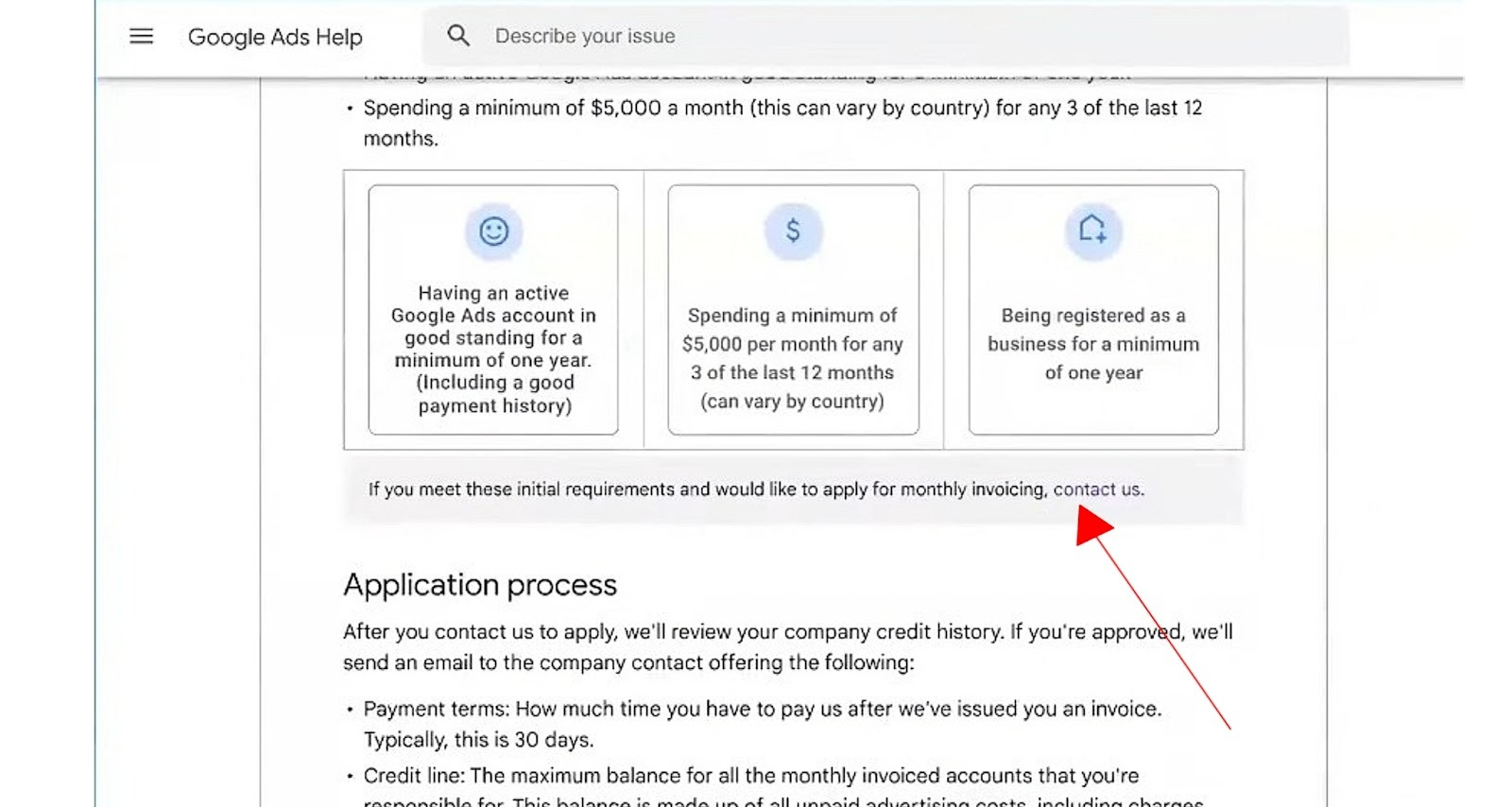
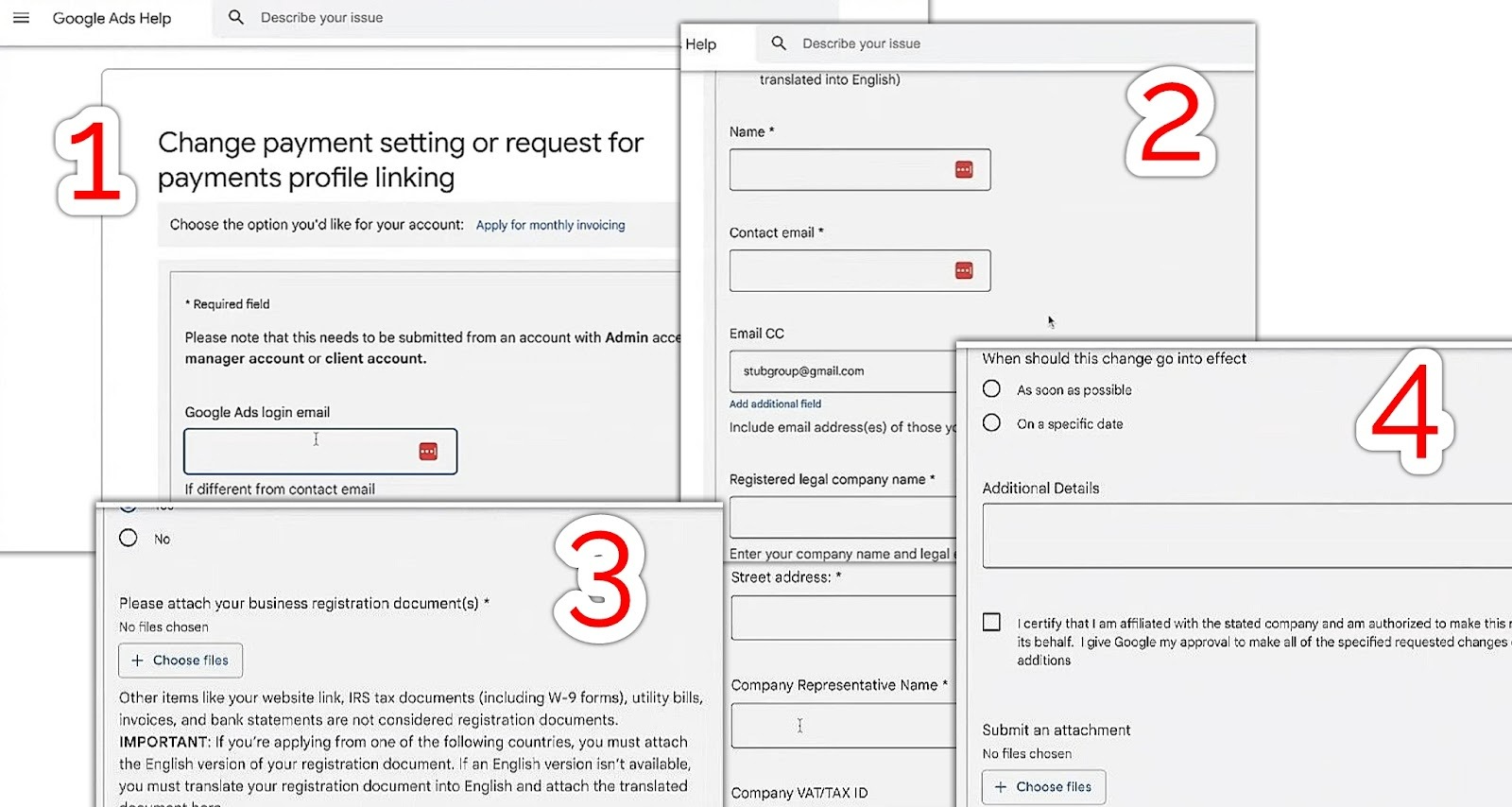
If you meet monthly invoicing Google Ads eligibility as discussed earlier, you can apply by:
-
Going to Billing > Settings > Apply for monthly invoicing.
-
Provide your business registration details, any required tax documentation, and recent financial statements.
-
Wait for Google to run a credit check
-
You will be granted a credit line with Net 30 terms
(Alternatively, you can also access this setting from Google Ads help)
Transfer billing to another profile or agency
If you're a startup that is trying to scale up, you may need to transfer billing to your agency partner for consolidated management. To do this:
-
Go to Billing > Settings.
-
Select Transfer billing.
-
Enter your new billing profile ID.
-
Confirm transfer.
Guide to using YeezyPay for your Google Ads Payment
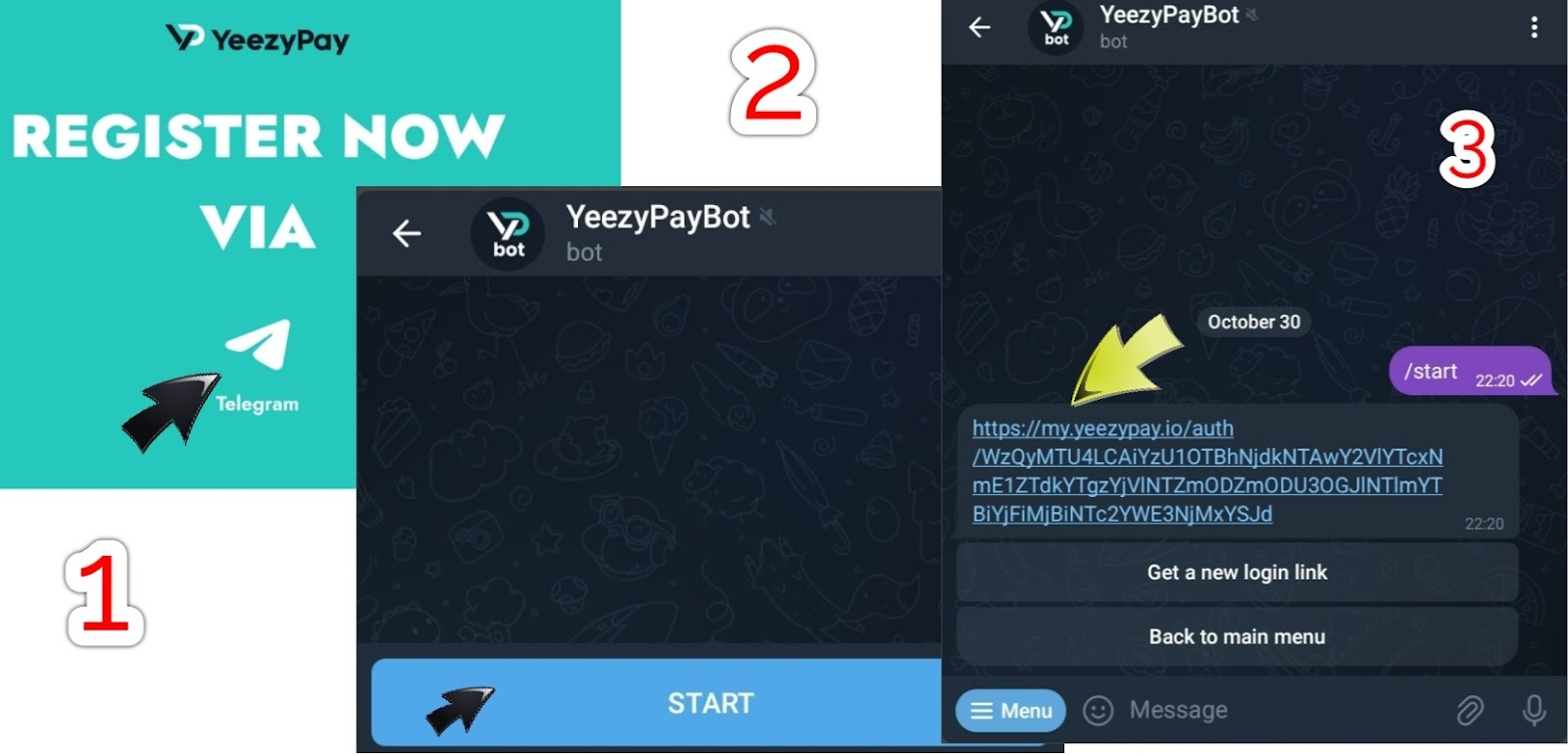
You will be happy to know that it is actually very simple to use YeezyPay. Let’s walk you through the steps: YeezyPay works by giving you access to Google Ads trusted agency accounts that already passed Google’s compliance checks, so you skip the hardest parts of setup. Here’s how to get started and keep your campaigns running smoothly:
-
Scroll down to the “REGISTER NOW” section on YeezyPay official website and click on the Telegram icon that leads to our service support, click on “Start” and select “Login”. You will then receive an invite link by email to complete registration.
-
Top up your YeezyPay balance in crypto (USDT), bank transfer, or cards.
-
Message your dedicated account manager on Telegram with the email you want to link, and you will get a login link to your new Google Ads agency dashboard.
-
Anytime you want to fund your campaigns, move money from your YeezyPay wallet into the Google Ads agency account.
From here, you can set up campaigns normally with YeezyPay’s agency status and eliminate payment issues. Also, you're assured of increased trust on your account, with reduced risk of sudden bans. The following tips will be helpful:
-
Sign up with a clean, non-banned email.
-
Don’t request accounts before funding your balance.
-
Stick to Google’s ad policies.
-
Rotate offers and avoid running the same one across multiple accounts.
-
Ask your account manager for compliance guidance when in doubt.
Cost, Limits, and Risk Management
Billing thresholds, caps, and spending limits
In postpay billing, Google uses a billing threshold which is basically a spend amount that triggers a charge before your monthly autopay date. For example, if your threshold is $500, you will be charged once you hit that amount, even if your billing cycle is not over. As your account builds history, thresholds may increase automatically.
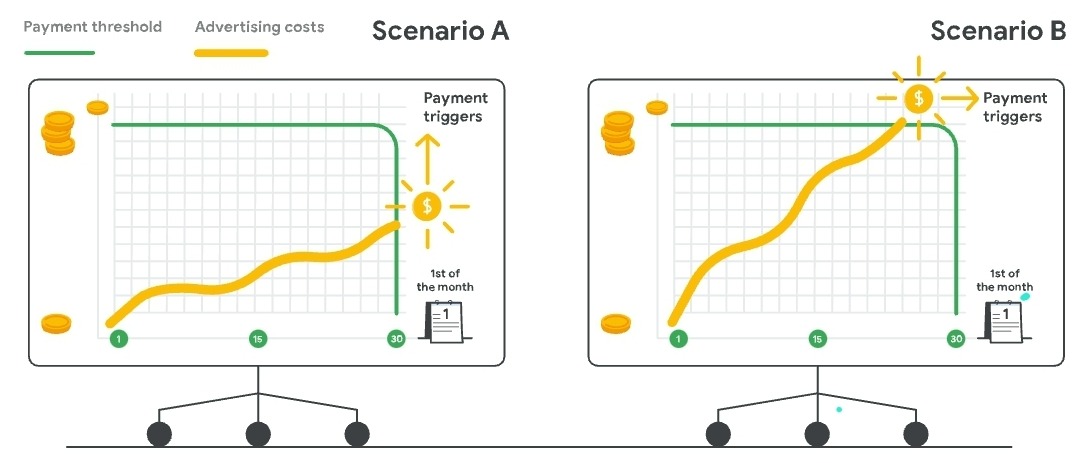
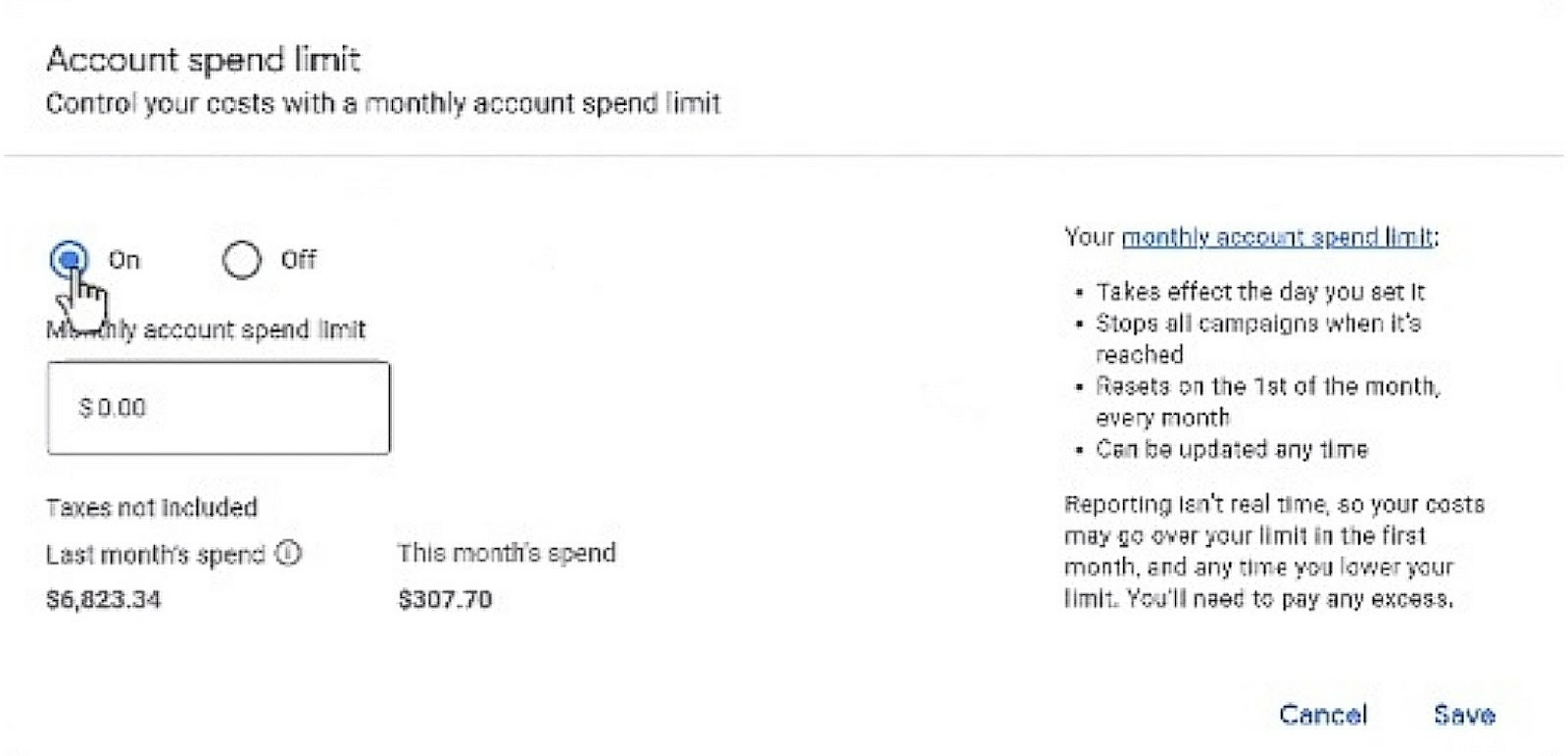
Now that we've gotten the billing threshold Google Ads explained, you can also set a spending limit to control costs. To do this: go to Billing > Settings > Payment settings, then enter a cap. Once reached, ads pause automatically. This is useful for SMBs that want to pace budgets without constant monitoring.
Chargebacks, refunds, and dispute timelines
You know, payment issues occur sometimes when you mistakenly fund your Google Ads account without running ads or you are wrongly charged by your bank. It is advisable not to start a dispute with your bank over a chargeback. Google treats this seriously and may suspend your account until it is resolved.
A safer approach is to request a refund directly in Google Ads. Refunds usually follow the refund timeline of two to three weeks, depending on your bank. Even if you prepaid a certain amount (say $1,000), but you end up spending less (say $600), it is guaranteed that the $400 balance will be refunded once you close the account.
Prevent holds and suspensions; recovery steps
Accounts can be placed on “payment hold” if a charge fails or if issues are detected during compliance checks. One way to prevent this from happening is to add a backup payment method Google Ads and keep your billing details up to date. For example, an advertiser who had their card declined due to insufficient funds could quickly switch to their backup ACH account, avoiding downtime.
If your account is suspended, the following instructions are the simple steps to take for recovery:
-
Log in and check the Billing > Summary page for error messages.
-
Update or replace the failed payment method.
-
If flagged for compliance, submit requested documents (e.g., proof of address).
-
Once resolved, ads resume automatically.
Compliance, Security, and Record-Keeping
Choosing a payment method for Google Ads should actually begin with ensuring compliance with payment policies and keep your records straight in order to sail through security checks. Before discussing more on the compliance basics, it is necessary to be conversant with the meaning of some acronyms you may come across in your documentation, especially when it comes to taxes, receipts, and payment compliance in Google Ads:
-
PCI DSS: Payment Card Industry Data Security Standard.
-
KYC: Know Your Customer.
-
PO Numbers: Purchase Order number
-
AML: Anti-Money Laundering.
PCI DSS, KYC/AML basics
Google enforces PCI DSS compliance for card payments to help protect cardholder data and ensure secure processing. In some markets, bank transfers are also subject to local banking rules and verification requirements. Advertisers may also be screened under applicable sanctions and compliance frameworks, which can result in payment restrictions for certain entities or regions.
In addition, Google usually run KYC and AML checks that may involve verifying your business name, address, and tax ID before approving certain billing options like monthly invoicing. For example, an agency that is applying for invoicing may be asked to submit documents of incorporation and proof of address to pass compliance.
Receipts, W-9/1099, EIN, accounting exports
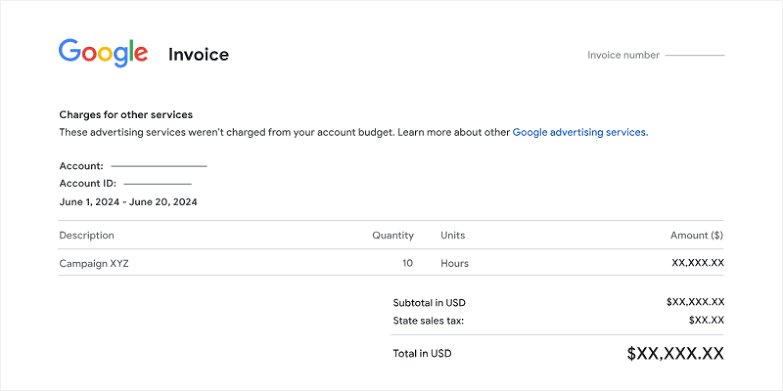
At every point in time, make sure that you maintain a good record-keeping as it is essential for tax and audit purposes. Google Ads provides downloadable invoices and receipts, which can be exported in CSV or PDF formats. You can download and save documents like your billing profile ID, charges, applicable sales tax records, etc.
Depending on the country and billing setup, businesses may need to provide tax identification details and supporting documentation to meet local requirements. Nonprofit organizations and education accounts may also need additional documents to confirm any applicable tax treatment. To streamline accounting, you can attach PO numbers or assign cost centers to invoices, making it easier to reconcile spend across departments.
UX and Operations
Asides choosing a payment method for Google Ads, you must also be deliberate about how smoothly your team can operate once billing is set up. The user experience (UX) and operations side of billing helps advertisers to manage who has access and how permissions are assigned. It also helps with invoice formatting, and how support interactions are handled.
Roles/permissions, support PIN, audit trail
In 2026, you can assign user permissions for billing so that finance staff can download invoices without being able to edit payment methods. To do this, go to Tools & Settings > Billing > Settings > Manage access, then choose roles such as “Admin” or “Billing-only.”
For support, Google requires a support PIN for billing. You will find this Billing setup. Sharing this PIN with your finance team ensures they can contact Google directly if there’s a payment issue. Whether you’re adding a card or updating tax info, every change made to billing is registered in the audit log / change history, you can always review to track who made updates and when. This is much needed by agencies that manage multiple accounts.
Invoice formats, PO numbers, cost centers
Invoices in Google Ads can be customized to fit your organization’s accounting needs. Adding PO numbers or assigning cost centers will help track your spend against internal budgets. or example, a multinational company might assign one cost center to campaigns in one region and another to campaigns in a different region, even though both appear on the same consolidated invoice.
You can easily set this up by navigating to Payment profile > Edit settings, then enter your PO number or cost center details. Invoices can be exported in CSV or PDF formats, for easy upload into accounting software. This flexibility ensures that whether you’re a small business or a large enterprise, your Google Ads billing profile setup aligns with your internal financial processes.
Troubleshooting
Dear advertiser, bear it in mind that billing issues can occur in Google Ads even with the best setup. This section offers guidance on practical steps you can take to resolve the common issues faced by advertisers.
Payment failed, account on hold, duplicate charges
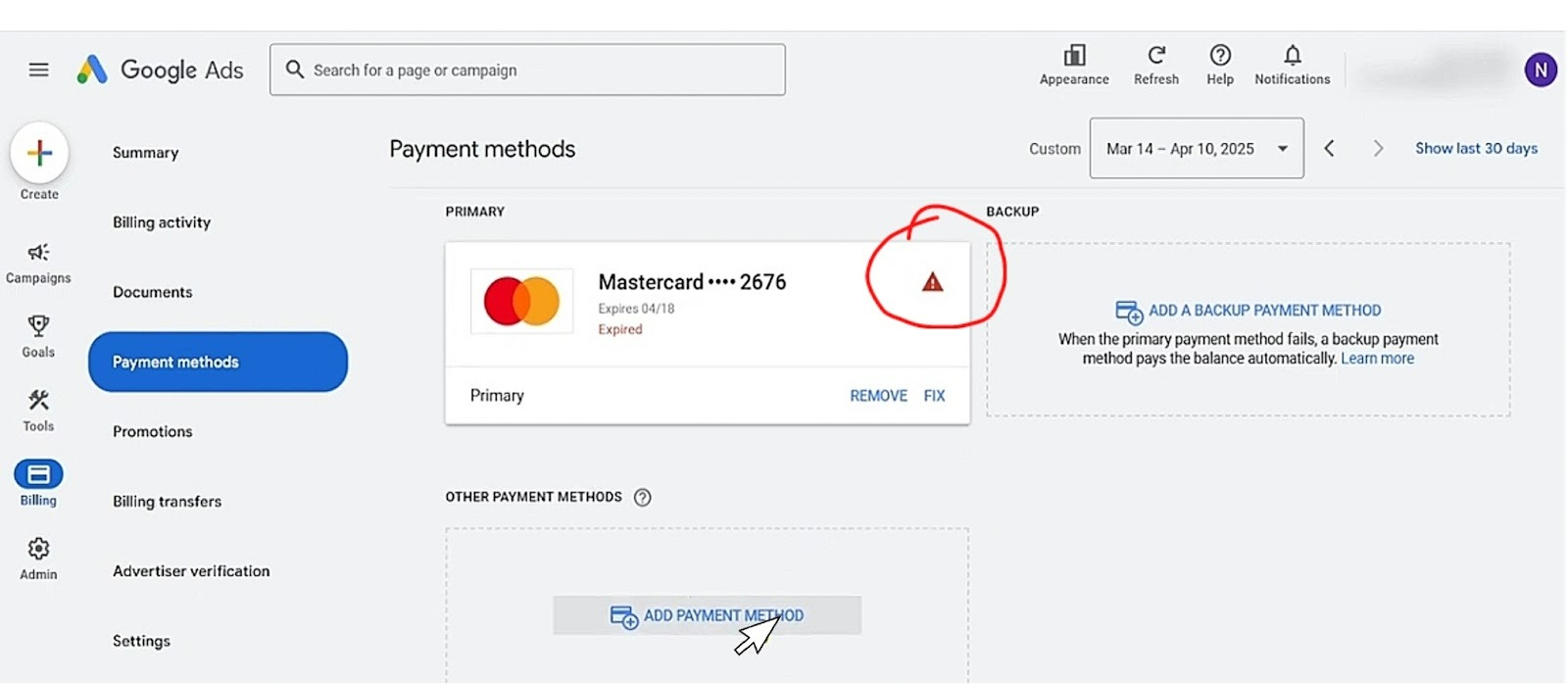
When you see “Google Ads payment failed”, the first step is to check your primary payment method. It could be due to expired card or insufficient funds, so you just need to top-up or update immediately and then Google will automatically retry the charge there.
If your account is placed on “payment hold”, it means that campaigns are paused because of a faulty payment method. You will find the fault under Billing Summary, then either update your card, verify your bank account, or contact support with your support PIN for billing.
It is rare to encounter duplicate charges but it happens if a payment is retried. In such cases, Google automatically issues a refund within the standard refund timeline. That said, you can also decide to suspend or reactivate ads after payments.
Bank posting delays, card declines, and verification mismatches
Because bank account payments can take several business days to post, it is normal for your account to show a pending balance while the payment is being processed.
A card may also be declined because of verification mismatches, so your billing details should match the information held by your payment provider.
Checklists
In order to confirm that everything is ready as regards payment, this section presents a checklist for you to go over before launching campaigns.
Pre-launch billing readiness
-
Confirm that your Google Ads billing profile setup is complete and accurate.
-
Make sure you’ve added a primary payment method and at least one backup payment method.
-
Verify your tax details and ensure your time zone and currency settings match your business records.
-
If you’re using ACH, complete the bank micro-deposits verification before scheduling campaigns.
Ongoing monthly billing hygiene
-
Export invoices Google Ads manager for accounting.
-
Attach PO numbers or cost centers where needed.
-
Change primary payment method Google Ads to the most efficient method
-
Review your audit log / change history to track updates.
-
Monitor your billing threshold and autopay date.
-
Keep an eye on budget pacing and caps.
-
Act quickly on every notice by updating your payment method or contacting support to get every possible Google Ads payment failed fix.
-
Don't report chargeback handling Google Ads payments to the bank, let Google handle it.
Conclusion
In 2026, advertisers should have no trouble choosing a payment method for Google Ads.. There are multiple options to choose from to ensure convenience and that your campaigns run smoothly without financial interruptions. Credit or debit cards are ideal for speed, ACH bank accounts are reliable, while monthly invoicing is perfect for enterprise-level control. Each option offers a balance of flexibility and cost management with the addition of backup payment methods and features like billing thresholds and consolidated billing. The best choice is the one that fits your current stage of growth while preparing you for the next.
Lastly, the cryptocurrency option offered by YeezyPay provides global accessibility and a solution for advertisers that are struggling with traditional methods. Your key takeaway from this article is that billing is a strategic part of your advertising setup. Verifying details and maintaining good billing hygiene will protect your campaigns from disruption.


