


Google Ads Conversion Tracking Not Working. What Should I Do?
Introduction
If your Google Ads conversion tracking is not working, you're not dealing with a minor inconvenience — you're flying blind. Every dollar you spend is going somewhere, but without reliable conversion data, you have no way to tell whether it's working or being wasted. Smart Bidding strategies like Target CPA and Target ROAS depend entirely on conversion signals to optimize bids. No data means the algorithm is guessing. And when the algorithm guesses, budgets bleed.
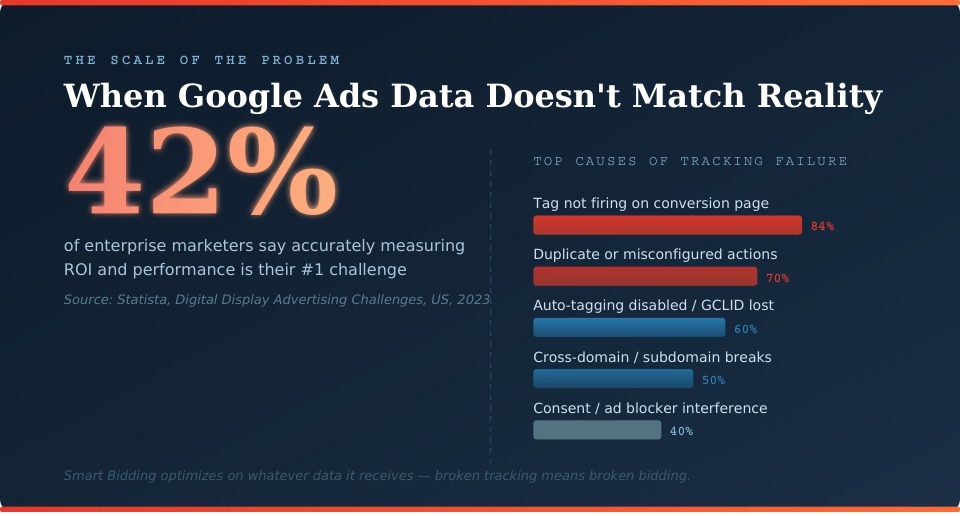
This isn't a rare problem. According to Statista's research on digital display advertising challenges in the US, 42% of enterprise marketers named accurately measuring ROI and performance metrics as their primary pain point — and unreliable conversion data sits at the root of that problem. The issue shows up across account sizes — from a local service business getting zero recorded leads to an e-commerce brand suddenly seeing purchase conversions drop to zero after a checkout redesign.
This guide walks through how conversion tracking actually works, how to diagnose what's broken, and how to fix the most common issues. No fluff — just a structured troubleshooting workflow you can follow from start to finish.
How Google Ads Conversion Tracking Works in 2026
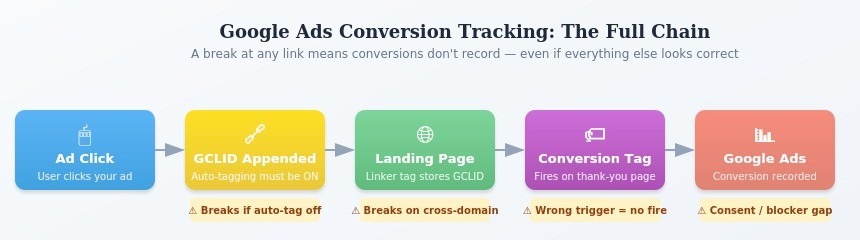
Before debugging anything, it helps to understand what the system is actually doing. Google Ads conversion tracking is not a single piece of code — it's a chain of components that have to work together correctly. A break anywhere in that chain means Google Ads conversions are not tracking, even if every individual piece looks fine in isolation.
Account Level Conversion Settings and Attribution
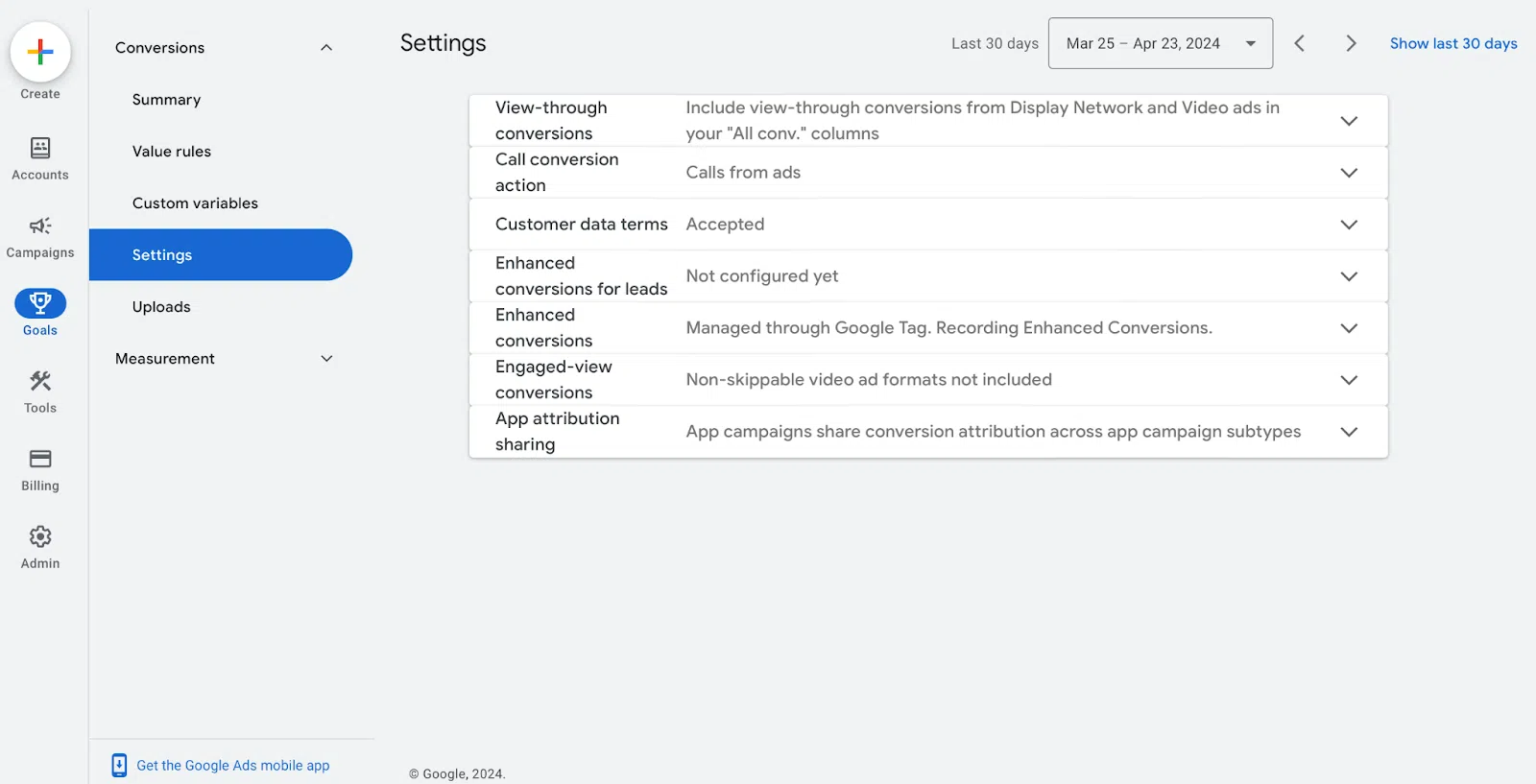
Inside your Google Ads account, conversion actions are defined at the account level under Tools → Conversions. Each action has several settings that affect how — and whether — conversions get recorded and reported: the category (purchase, lead, page view, etc.), the counting method (every conversion vs. one per click), the attribution model, the conversion window, and whether the action is marked as Primary or Secondary.
The attribution model setting is where a lot of confusion happens. Google switched the default attribution model from Last Click to Data-Driven Attribution (DDA) in 2022. DDA distributes credit across multiple touchpoints based on machine learning, which means a conversion might be attributed to a click that happened several days ago — or split across multiple clicks. If you're comparing Google Ads data to a CRM or analytics tool that still uses last-click logic, the numbers will never match exactly, and that mismatch often gets misread as a tracking problem.
The conversion window also matters more than most advertisers realize. For lead generation campaigns, Google allows windows up to 90 days. If a user clicked your ad 45 days ago and converted today, that conversion will appear in the data — but it will be counted back to the original click date, not today. This is the Google Ads conversion lag explanation that causes many advertisers to think conversions have dropped when they're actually just delayed in attribution.
The Role of Google Tag Manager and Other Tag Managers
Most Google Ads conversion tags are deployed through Google Tag Manager rather than hardcoded into the site. This adds flexibility but also adds failure points. GTM has its own layer of logic — triggers, variables, tag firing rules — that sits between your website and Google Ads. A GTM Google Ads conversion not working situation is almost always a trigger or variable issue, not a problem with the tag itself.
It's also worth noting that GTM is not the only option. Some teams use Tealium, Adobe Launch, or Segment. The diagnostic approach differs depending on the tag management system in use, but the core questions remain the same: is the tag firing, is it firing on the right page, and is it passing the right data?
Quick Diagnosis Checklist
When Google Ads conversion tracking is not working, the temptation is to go straight to the code. Resist that. A five-minute audit of the settings and reports often reveals the problem before you ever open GTM or browser dev tools.
Confirm Conversion Actions Are Active and Primary
Open Google Ads, navigate to Goals → Conversions → Summary. Check the status column for each conversion action. A status of "No recent conversions" is normal for low-volume accounts, but "Inactive" or "Tag unverified" means something is broken at the implementation level. More importantly, check whether your main conversion actions are set as Primary — not Secondary. Only Primary conversion actions feed into Smart Bidding optimization. If your purchase or lead action is accidentally set to Secondary, your campaigns are optimizing toward nothing useful, and the conversions may still be recording but have no impact on bidding. Julius Fedorovicius of Analytics Mania — one of the most widely referenced GTM practitioners in the industry — specifically flags this as a commonly missed setting: accounts can show healthy conversion counts while the wrong actions are driving optimization.
Check Date Range, Filters and Attribution Reports
Before assuming Google Ads conversions not showing in reports is a technical problem, verify the date range. Google Ads defaults to a 30-day view, which cuts off conversions that happened earlier in your window. If you changed your attribution model recently — say, from Last Click to Data-Driven — historical data gets recalculated, which can cause a visible dip that looks like tracking failure but isn't. Check the Google Ads conversion lag explanation in your account: under Campaigns → Columns → Modify columns → Conversions, you can add "Days to conversion" to see how long it takes users to convert after clicking. For B2B or high-consideration purchases, a 14–30 day lag is common, and many advertisers incorrectly diagnose this as broken tracking.
Compare Google Ads Data With Analytics and Backend
A meaningful discrepancy between Google Ads conversion counts, GA4, and your CRM or backend order system is the single clearest indicator of a tracking problem. Some variance is expected — GA4 uses session-based attribution, Google Ads uses click-based attribution, and CRMs often record by lead entry date rather than ad interaction date. But if Google Ads shows 45 purchases and your Shopify backend shows 12 for the same period, you have a problem worth investigating: likely duplicate conversion actions, incorrect counting settings (Every vs. One), or inflated view-through conversions being mixed into the reported total. Analyzify's research published in late 2024 found that double-counting is one of the most frequently ignored Google Ads tracking problems among Shopify merchants — and it's just as common in non-ecommerce accounts.
Identify When Conversions Stopped Tracking
If Google Ads conversions dropped suddenly rather than never working, pinpoint the date. Go to your conversion report, segment by day, and find where the drop-off happened. Then cross-reference that date with GTM version history (Versions tab in GTM), website deployment logs, and any platform updates. According to Analytics Mania, if your conversion tracking broke on a specific date, you should go to GTM → Versions and check what was published on that day or in the days prior — a modified tag, a paused trigger, or a changed variable could be the culprit. A website redesign is one of the most common triggers: advertisers assume tracking works because they set it up months ago, but a site redesign can break the implementation entirely — and campaigns then run for weeks with zero recorded conversions while the team assumes performance has collapsed
Most Common Reasons Google Ads Conversion Tracking Is Not Working
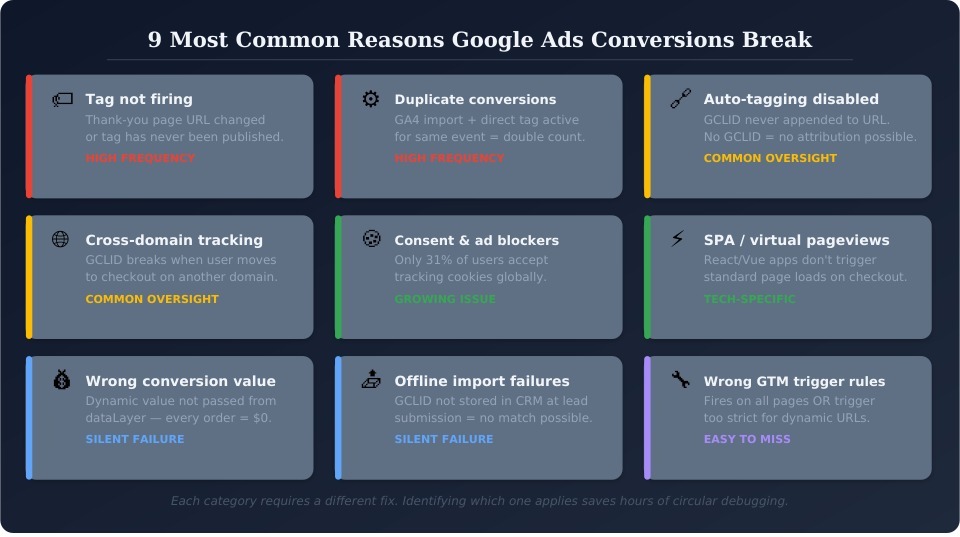
Most Google Ads conversion tracking issues fall into one of several recurring categories. Understanding which category applies to your situation narrows down the fix considerably.
Misconfigured Conversion Actions and Duplicate Goals
One of the most common — and least obvious — causes of bad data is having too many conversion actions, not too few. Duplicate conversion actions are created when someone adds a new tracking setup without removing the old one, or when GA4 imports are running simultaneously with native Google Ads tags for the same event. The result looks like inflated conversion numbers, which is the opposite of the "zero conversions" problem but equally damaging for bidding accuracy.
Julius Fedorovicius of Analytics Mania specifically highlights this: native Google Ads conversion tracking is generally more reliable than importing from GA4, and mixing both for the same action introduces reconciliation problems that are hard to diagnose without checking every conversion action's source individually.
The fix: go to Goals → Conversions → Summary, audit every active action, identify duplicates, and either remove or pause the redundant ones. Check the "Source" column — if you see both "Website tag" and "Google Analytics" for the same conversion type, you likely have a double-counting problem.
Tag Not Firing on the Thank You or Confirmation Page
The Google Ads conversion tag fires on a specific page — typically a thank-you, order confirmation, or form success page. If that page's URL changes, gets removed during a redesign, or is never reached by users (due to a broken form or redirect), the Google Ads conversion tag not firing issue appears. The tag exists, GTM shows it as configured, but no conversions register.
This is exactly what happened to multiple Shopify merchants in June 2024 when Shopify rolled out its new Checkout Configurations. Dozens of merchants reported zero Google Ads conversions after activating the new checkout — despite orders continuing to flow normally and Google Analytics functioning fine. The root cause was that Shopify's updated checkout system disabled traditional tracking methods, and the existing Google Tag script simply stopped firing on checkout pages. One merchant reported their conversions dropped from 25 per day to 1, with ad spend collapsing from £600 to £100 daily before the issue was identified. The fix required migrating to custom pixels via Shopify's Customer Events — not a GTM trigger change, but a fundamental rethinking of where the tag fires.
Wrong Trigger Rules or Conditions in Google Tag Manager
In GTM, the conversion tag might be configured correctly but firing under the wrong conditions. A trigger set to fire on "All Pages" instead of a specific thank-you page URL will record false conversions on every page load. Conversely, a trigger with an overly strict URL condition — such as requiring an exact match on a dynamic URL with order parameters — will never fire if the URL format varies.
The Analytify troubleshooting guide points to trigger misconfiguration as one of the most frequent causes of gtm Google Ads conversion not working: tags set to fire on the wrong page, tags paused unintentionally, or triggers using variables that don't exist in the current GTM container version.
Auto-Tagging Disabled and Missing GCLID Parameter
When someone clicks a Google Ad, Google appends a GCLID (Google Click ID) parameter to the destination URL. This parameter is what links the click to a subsequent conversion. If auto-tagging is disabled in your Google Ads account settings, the GCLID is never added, and conversions cannot be attributed to specific clicks or campaigns — even if the conversion tag fires correctly.
Auto-tagging gets disabled more often than you'd expect: a developer "cleaning up" UTM parameters may strip the GCLID, a redirect chain may drop URL parameters, or a CMS update may overwrite query strings before the landing page loads. Check: Google Ads → Settings → Account Settings → Auto-tagging. If it's off, turn it on and verify that your landing pages preserve the full URL, including query parameters.
Cross-Domain and Subdomain Tracking Issues
If your checkout process moves users across domains — for example, from yourstore.com to checkout.thirdpartyplatform.com and back to yourstore.com/confirmation — the GCLID and session data can break between steps. The conversion tag on the confirmation page has no way to connect the current session back to the original ad click because the cross-domain link has been severed.
Cross-domain tracking Google Ads conversions requires either a Conversion Linker tag in GTM configured for cross-domain tracking, or manual parameter passing between domains. Subdomain tracking (e.g., shop.yoursite.com to yoursite.com) requires different configuration than full cross-domain setups and is frequently misconfigured when sites add separate subdomains for checkout or booking flows.
Single Page Applications and Virtual Pageviews Not Tracked
React, Vue, Angular, and other SPA frameworks don't trigger standard page loads when users navigate between views. A "thank you" screen in a SPA may display after a form submission without generating a new page request, meaning a GTM trigger based on Page View or History Change may fire at the wrong moment — or not at all.
The fix requires either a data layer push from the development team when the conversion event occurs, or a custom JavaScript trigger in GTM that listens for specific DOM changes. Without this, Google Ads purchase conversions missing is often the result — the purchase happened, the confirmation showed, but the tag never had a valid trigger event to respond to.
Conflicts With Consent Banner, Ad Blockers and Browsers
This is now one of the fastest-growing causes of Google Ads conversion tracking issues — and it's structural, not a configuration mistake. Research from Cookie Script shows that globally, only 31% of users accept tracking cookies on average, meaning nearly 70% of traffic is invisible to traditional client-side tracking. For sites with aggressive or confusing consent banners, that number can be worse: some practitioners report that up to 80% of users deny or ignore cookie banners in the worst case, meaning only 20% of conversions get measured via standard tag-based tracking.
The Google Ads consent mode and conversions problem was significantly amplified on July 21, 2025. Google silently began enforcing Consent Mode V2 for all EEA and UK traffic on that date, and sites whose consent banners were not properly connected to Google tags saw conversion tracking, remarketing, and demographic reporting simply stop working — with some sites reporting 90-95% drops in measured conversions overnight.
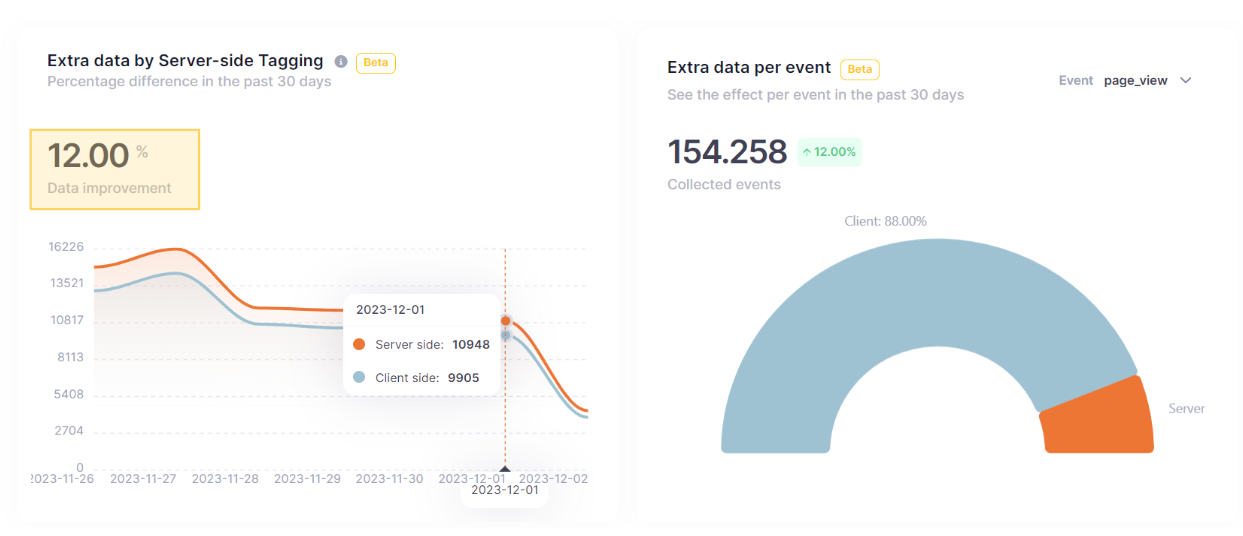
For US-based advertisers, the immediate regulatory pressure is lower, but ad blocker penetration is real: roughly 27% of US internet users run some form of ad blocker according to Statista's 2024 data, and Safari's Intelligent Tracking Prevention and Firefox's Enhanced Tracking Protection restrict cookie lifespans even for users who don't use dedicated blockers. The team at PPC Mastery notes that server-side tagging typically recovers 10–30% of conversions lost to client-side blocking — a significant uplift for high-traffic accounts.
Incorrect Conversion Value or Currency Configuration
Dynamic conversion values not passing to Google Ads is a common issue for e-commerce accounts. If the conversion action is configured to use a static value (e.g., always recording $1.00) instead of pulling a dynamic value from the data layer, every purchase is recorded with the same value, regardless ofthe actual order amount. This corrupts ROAS data and makes Target ROAS bidding unreliable.
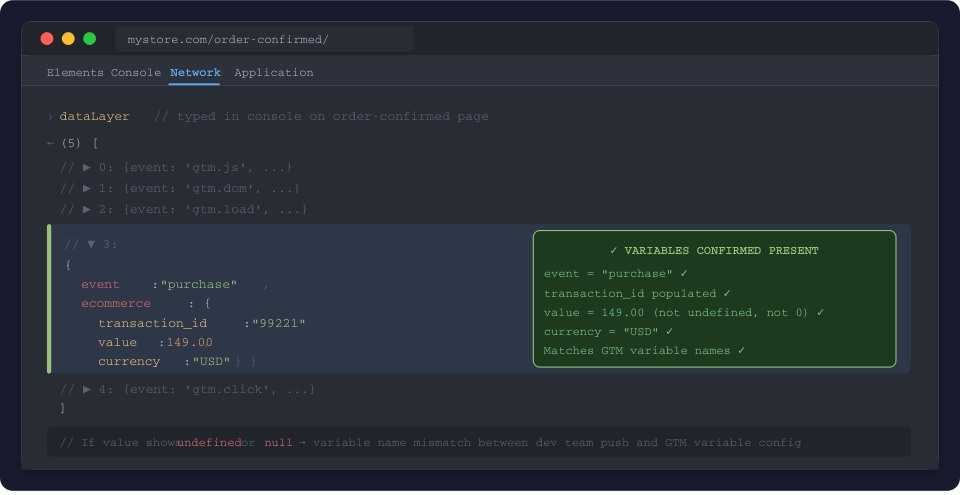
The dynamic value setup requires a correctly configured data layer variable in GTM that reads the transaction value from the page and passes it to the Google Ads conversion tag. If the variable name doesn't match what the development team pushed to the data layer — even a capitalization difference like transactionTotal vs. transactiontotal — the value won't pass and the tag records $0 or the default value instead.
Problems Importing Conversions From Google Analytics or CRM
Google ads offline conversions not importing and GA4 import failures share a common root cause: the link between platforms is broken or the configuration doesn't match the actual data flow. For GA4 imports, the most frequent issue is that the GA4 key event being imported doesn't fire under the same conditions as the Google Ads tag expects — particularly after GA4's November 2024 update that changed how config commands process before custom events.
For CRM-based offline imports, the GCLID must be captured at the time of the original form submission and stored against each lead record. If the CRM doesn't capture GCLID — which requires a custom field and either a hidden form field or a JavaScript snippet — the upload file will have no click IDs to match against and every imported conversion will fail to attribute.
Step-by-step troubleshooting workflow
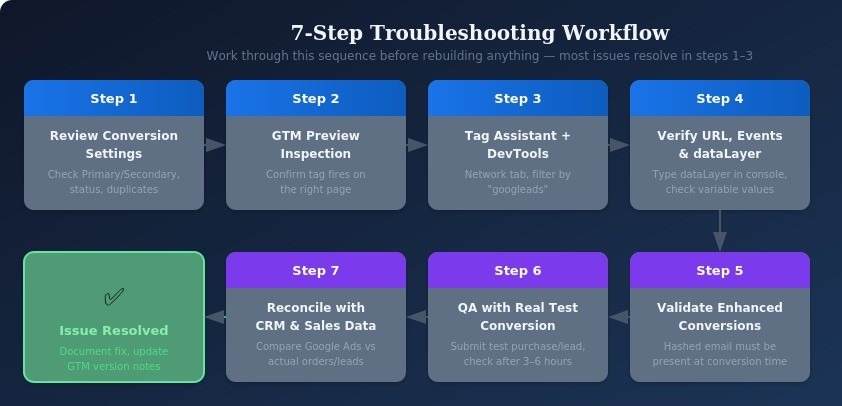
When Google Ads conversion tracking is not working, the temptation is to jump straight to GTM or tag settings. That's usually a mistake. Most problems follow a pattern, and working through them in a defined order saves time and prevents the circular debugging that eats up hours. The workflow below moves from the simplest checks to the most technical ones — so you're not reconfiguring your data layer when the actual issue is a wrong date range filter.
Step 1: Review conversion settings inside Google Ads
Start inside the platform itself. Go to Goals > Conversions > Summary and check the status of each conversion action. Look for actions marked as "Inactive," "Unverified," or "No recent conversions." If a conversion is set as Secondary, it won't appear in the main Conversions column — only in All Conversions. That alone explains a lot of "missing" data that isn't actually missing.
Also confirm which actions are set as Primary and being used for bidding. If you have multiple purchase conversions active simultaneously — say, one imported from GA4 and one via a direct Google Ads tag — you'll likely see inflated numbers or double-counting. Julius Fedorovicius of Analytics Mania, one of the most widely cited GTM practitioners, notes this is a recurring issue: duplicate conversion actions created over time that nobody cleaned up, with each one pulling in data independently. The fix is straightforward — keep one primary purchase conversion, audit duplicates, and set extras to Secondary or remove them entirely.
Step 2: Inspect tags with Google Tag Manager preview
Open GTM, click Preview, and navigate to the page where the conversion should fire — typically the order confirmation or thank-you page. Watch the tag panel on the right. If the Google Ads Conversion Tracking tag doesn't appear under "Tags Fired," the trigger is either wrong or the tag has never been published.
That last part matters more than it sounds. As Fedorovicius points out explicitly in his troubleshooting guide: if you modified a GTM tag and tested it but never hit Submit, the changes exist only in your workspace. Live visitors are still running the old (potentially broken) container version. Check Overview > Workspace Changes — if the conversion tag appears there, it hasn't been published yet.
Step 3: Test with Tag Assistant and browser developer tools
After confirming the tag fires in GTM Preview, open Google Tag Assistant (the Chrome extension or the legacy version at tagassistant.google.com) and navigate through a real or simulated conversion path. The tool will show whether the tag fired, what values were passed, and flag any errors — like a mismatched Conversion ID or a missing GCLID.
For deeper inspection, open Chrome DevTools (F12 > Network tab), filter by "googleads" or "conversion", and watch the outbound requests during the conversion event. You should see a request to googleads.g.doubleclick.net or www.googletagmanager.com. If there's no request at all, the tag isn't firing client-side. If the request exists but conversions still don't appear in Google Ads, the issue likely lives in attribution, consent mode, or a data mismatch.
Step 4: Verify page URL, events and data layer variables
A significant chunk of Google Ads conversion tracking issues stem from the tag being configured to fire on a URL that doesn't match reality. If your thank-you page URL is mystore.com/checkout/order-received/12345/ but your trigger condition says "Page URL contains /thank-you/", the tag will never fire.
For event-based tracking, open the dataLayer in DevTools console and type dataLayer to inspect what's actually being pushed on the conversion page. Confirm that the event name matches what your GTM trigger is listening for (e.g., purchase vs. transaction vs. order_complete — these are not interchangeable). Dynamic conversion values — order total, currency, transaction ID — need to be present in the dataLayer at the moment the tag fires. If those variables return undefined, the tag fires but passes empty or zero values, which causes dynamic conversion values not passing to Google Ads — a silent failure that only shows up when you compare Google Ads revenue data against your actual backend numbers.
Step 5: Validate enhanced conversions and user identifiers
If Enhanced Conversions is enabled, check that hashed user data — typically email address — is actually being passed. This requires either an automatic collection setup via the Google Tag, or a manual implementation using a User-Provided Data event tag in GTM.
Ginny Marvin, Google's Ads Product Liaison, explained the mechanism clearly in a session published on KPPlaybook.com: Enhanced Conversions for Web sends hashed first-party data from the conversion page, which Google then matches to signed-in users who interacted with ads. She noted three hard prerequisites: sitewide tagging must be in place, the conversion source must be Google Ads or GA4, and customer data must be present on the page at conversion time. If any of those three conditions fail, enhanced conversions produce no data — no error message, just silence. Validate all three before assuming the feature is broken.
Step 6: QA with test purchases and lead submissions
Don't rely on previewing the tag alone — submit a real test. On an e-commerce site, complete an actual test purchase. On a lead gen site, fill out the form with a test email. Then check Google Ads > Goals > Conversions roughly 3–6 hours later (not immediately — there's a processing delay). You should see a conversion with a test value appear.
If the test conversion doesn't show up within 24 hours, something is broken in the chain — not just delayed. Cross-reference with GTM Preview logs from the same session and check whether the GCLID was present in the URL when you landed on the site (it should look like ?gclid=EAIaIQ...). If there's no GCLID in the URL, auto-tagging may be disabled in your Google Ads account settings, which means Google Ads conversions will never record correctly regardless of what the tag does.
Step 7: Reconcile conversions with CRM and sales data
The final step is comparing what Google Ads reports against your actual business data. Pull your CRM or order management system for the same date range and count conversions manually. If Google Ads reports 40 conversions and your CRM shows 110 qualified leads that came through your paid search landing page, there's a significant gap — and not one that date range filters will explain.
This reconciliation often surfaces Google Ads offline conversions not importing correctly — where closed deals or phone-confirmed orders never get uploaded back to Google. It also catches attribution window mismatches: if your Google Ads conversion window is set to 30 days but your CRM only pulls the last 7, the numbers will never match. Align the windows, document the methodology, and revisit this check monthly. Smart Bidding makes decisions based on this data — if it's wrong, your bids are wrong.
Special cases and edge scenarios
Some tracking failures don't fit the standard debugging playbook. The setup looks right, the tag fires, the trigger condition is correct — and conversions still don't come through. That's almost always a sign you're dealing with a platform-specific constraint or an edge case that standard GTM documentation doesn't cover. The scenarios below are where the typical troubleshooting workflow breaks down and you need a different approach entirely.
Shopify and other hosted checkout platforms
Shopify has been at the center of more Google Ads conversion tracking issues over the past two years than almost any other platform — and for a specific reason. In August 2024, Shopify officially phased out its checkout.liquid file for Information, Shipping, and Payment pages. For Shopify Plus stores, the Order Status and Thank You pages followed on August 28, 2025. This change directly broke conversion tracking for thousands of merchants who had embedded their Google Ads tags inside those now-deprecated files.
The team at Socium Media documented this pattern in detail after seeing it across their client accounts. Their finding was direct: if a merchant activated Checkout Extensibility before migrating their tracking scripts to Shopify Customer Events (the new native pixel framework), Google Ads received no purchase data — the tags were simply no longer running. One merchant in the Shopify Community forum described going from steady daily conversions to zero, starting June 15, 2024, the day they activated the new checkout configuration. The issue had nothing to do with their Google Ads setup — the tags were fine, the triggers were correct, but the scripts had no execution environment left.
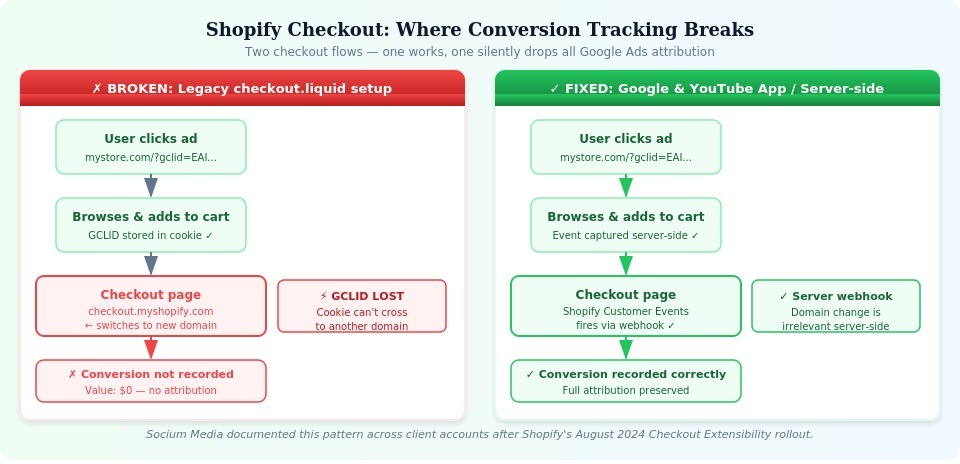
The fix path Socium Media and Analyzify both recommend: install the Google & YouTube app from the Shopify App Store, which handles GA4 and Google Ads tracking natively via Shopify's Customer Events system without requiring GTM. For stores with more complex setups, server-side solutions like Elevar, Analyzify, or Stape are the reliable alternatives — all three have updated their platforms specifically for Checkout Extensibility compatibility.
One additional Shopify-specific trap: the checkout subdomain. Shopify stores frequently complete transactions on checkout.myshopify.com rather than the merchant's primary domain. If your conversion tag fires on the confirmation page, but the GCLID was stored on your main domain and not passed through to the checkout subdomain, the attribution chain breaks. Cross-domain tracking between the storefront and the Shopify-hosted checkout must be explicitly configured, either via auto-linker in GA4 or through the Google & YouTube app.
Third-party payment gateways and redirects
PayPal, Stripe Checkout, Square, and similar hosted payment pages operate outside the merchant's domain entirely. When a user clicks "Pay with PayPal," they leave your site, complete the transaction on PayPal's domain, and return to your confirmation page — often without the GCLID surviving the redirect. The result is Google Ads purchase conversions missing, even though the order exists in your backend.
The most reliable workaround is server-side conversion tracking, where the purchase event is fired from your server (triggered by a webhook from your payment gateway) rather than from the browser. This approach bypasses the redirect entirely. For setups that can't go server-side yet, some payment platforms support return URL parameters — meaning you can append the GCLID to the return URL and read it back on the confirmation page. This requires custom development but is more reliable than hoping a third-party gateway preserves URL parameters through its own redirect flow.
Lead gen forms, thank you pages and popups
For lead generation sites, Google Ads lead form conversions not recording is usually one of three things: the form submits via AJAX without a page change, the confirmation message is a popup or inline success state rather than a separate URL, or the thank-you page URL varies dynamically in a way the trigger doesn't account for.
AJAX forms are the most common culprit. When a user submits a form and the page doesn't reload — just shows a "Thanks, we'll be in touch" message — a URL-based trigger never fires. The tag needs to listen for the form submission event itself, typically gtm.formSubmit, or for a custom dataLayer push that your developer adds on successful form submission. If the form is embedded via a third-party tool like HubSpot Forms, Gravity Forms, or Typeform, each has its own event structure and may require a dedicated integration tag rather than a generic GTM trigger.
Popup-based confirmations add another layer: the popup fires in the same page context, which means the GTM tag can fire — but only if the trigger captures the right moment. Testing this requires using GTM Preview while actually submitting the form, not just loading the page.
Call tracking numbers and phone call conversions
Google Ads phone call conversions not tracking is a scenario where the gap between what Google Ads reports and actual call volume can be significant. Jyll Saskin Gales, a former Google employee and Google Ads coach, points out a common confusion: Google Ads can count a click on a call asset as a conversion even if the person never actually made the call — they tapped the button, the phone app opened with the number pre-filled, and that's the tracked event. The result looks like a spike in call conversions that doesn't match your phone system logs.
For website call tracking using dynamic number insertion (DNI), the full attribution chain requires three things to be in place simultaneously: auto-tagging must be enabled in Google Ads so GCLIDs are appended to landing page URLs; your JavaScript tracking snippet (from CallRail, WhatConverts, or similar) must be installed and loading correctly on all relevant pages; and the GCLID must be captured when the visitor lands and associated with the call when it happens. CallRail's own troubleshooting documentation notes that if the tracking numbers aren't swapping (i.e., visitors all see the same static number rather than a unique pool number), no calls will report to Google Ads as conversions regardless of how the integration is configured.
One frequently missed setting: the minimum call duration threshold. If your Google Ads conversion action is set to count only calls longer than 60 seconds but your average inbound call is 45 seconds, you'll see call volume in your phone system but near-zero in Google Ads. Audit that threshold before digging into tag-level issues.
Offline and imported conversions from sales teams
Google Ads offline conversions not importing correctly is a problem that disproportionately affects B2B advertisers and service businesses, where the actual sale happens days or weeks after the initial lead form submission. The architecture requires the GCLID to be captured at form submission, stored in the CRM, and uploaded back to Google Ads with the conversion timestamp once the deal closes.
Where this breaks most often: the GCLID isn't being stored in the CRM at all. Most CRM platforms don't capture URL parameters by default — a custom field and a hidden form field tied to the GCLID parameter in the URL must be explicitly set up. Google's own documentation on GCLID-based offline conversions notes that your backend system needs to store that click ID alongside the lead record from the moment of submission, not retroactively.
The second common failure point is timing. Google retains click data for 90 days. If a sales cycle runs longer than that — not unusual for enterprise deals — the GCLID will have expired by the time the conversion is uploaded, and Google Ads will log it as "Click not found." In that scenario, upgrading to Enhanced Conversions for Leads (which uses hashed user data like email address rather than GCLIDs for matching) provides a more durable fallback.
Note that as of May 31, 2025, Google deprecated the legacy Salesforce integration for offline conversion import — any advertiser still using that path needs to migrate to Google Ads Data Manager.
How to prevent tracking issues in the future
Fixing a broken tracking setup is one thing. Building one that doesn't break every time something changes on the site is a different problem entirely. The sections below aren't theoretical best practices — they reflect what actually separates stable, reliable Google Ads conversion tracking setups from the ones that require emergency debugging every few months.
Implementation checklist for new campaigns and sites
Every new campaign or site launch should go through a structured pre-flight check before spend goes live. The most common failure pattern — Google Ads tracking not working after website redesign — doesn't happen because developers are careless. It happens because there was no formal handoff between the team that built the site and the team running paid media.
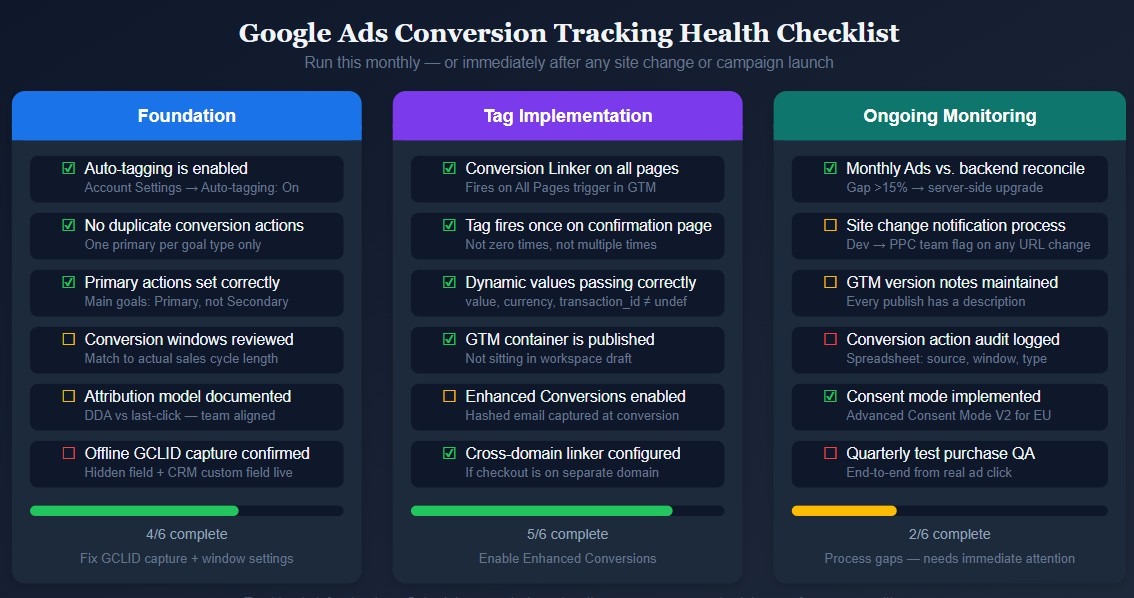
A working implementation checklist covers the following: confirmation that the Google Ads conversion linker tag fires on all pages, not just the confirmation page; verification that the conversion tracking tag fires exactly once on the thank-you or order confirmation URL; a test conversion completed end-to-end from an actual ad click (not a direct URL visit, since the GCLID only appears after a real ad click); validation that dynamic conversion values — order total, transaction ID, currency — pass correctly through the dataLayer; and a spot-check confirming auto-tagging is enabled in Google Ads account settings.
For e-commerce builds, add two more items: confirmation that cross-domain tracking is configured if checkout lives on a subdomain or third-party domain, and a review of the conversion action settings in Google Ads to ensure the counting method, conversion window, and attribution model are appropriate for the business type.
Change management for website and checkout updates
This is where most mature accounts still have gaps. When a developer pushes an update to the checkout flow, thank-you page URL structure, or form handler — and doesn't flag it to the PPC team — Google Ads conversions dropped suddenly is the inevitable result, sometimes days later, when the conversion window close,s and the data gap becomes visible.
A simple fix: add a standing requirement that any website change affecting URLs, forms, payment flows, or page structure triggers a notification to whoever manages tracking. This doesn't require a formal ticketing system. Even a Slack message or a note in a shared doc is enough to prompt a quick verification run. Julius Fedorovicius of Analytics Mania explicitly recommends this in his troubleshooting guide — when conversions drop unexpectedly, his first question is always: "What changed on the site around the date they stopped?" Most of the time, the answer is sitting in a deploy log that nobody thought to mention to the ads team.
The other half of change management is knowing how to recover quickly when something does break. Fedorovicius also notes that GTM's version history allows you to roll back to a previous container state if a recent publish introduced a bug. That rollback capability is only useful if you have clean version notes — if every GTM version is labeled "Untitled Version," finding the last working state becomes a manual process of testing each one.
Documentation and version control for tags and containers
Documentation sounds like overhead until the person who set up the original tracking leaves the company and nobody can explain why there are four conversion actions named "Lead Form" with slightly different configurations.
The minimum viable documentation for a Google Ads tracking setup includes a record of every active conversion action with its purpose, counting method, and conversion window; a log of which GTM container version introduced each tracking change and why; a mapping of which tags fire on which pages; and a note on any custom dataLayer events that developers maintain. ClicksGeek recommends keeping this in a simple spreadsheet — not a proprietary tool — so anyone on the team can access it without special permissions or onboarding.
GTM itself supports this through workspace descriptions and version notes. The habit of writing a one-sentence summary when publishing a container version takes 15 seconds and has saved significant debugging time in accounts where multiple people touch the same container. For larger organizations managing tracking across multiple domains or brands, a shared naming convention for conversion actions — consistent across Google Ads, GA4, and any CRM integration — is the difference between a coherent audit trail and a fragmented mess.
When to move to server-side tagging and advanced setups
Client-side tagging has a ceiling. Between Safari's Intelligent Tracking Prevention, Firefox's Enhanced Tracking Protection, browser extensions like uBlock Origin, and the ongoing deprecation of third-party cookies, a setup that relies entirely on browser-side tags will continue to lose data over time. Bram Van der Hallen of PPC Mastery, who advises on measurement strategy for paid media teams, has documented conversion uplifts between 10–30% after moving to server-side tagging — a range consistent with what Usercentrics reports, where ROAS improvements up to 35% have been observed in server-side migration case studies.
Server-side tagging isn't the right move for every account — it requires a hosted server environment (typically Google Cloud Run, which costs roughly $5–50/month depending on traffic volume), technical setup that goes beyond standard GTM, and ongoing maintenance. But there are clear signals that it's worth investing in. If a significant share of the site's audience uses privacy-focused browsers or ad blockers — common in tech, finance, and B2B audiences — client-side data loss is structural, not fixable with tag adjustments. If the site processes payments through third-party gateways that break GCLID continuity, server-side conversion firing from a payment webhook is more reliable than any browser-based workaround. And if the business relies on Smart Bidding strategies like Target ROAS or Target CPA, feeding those algorithms with 15–30% fewer conversions than actually occurred means they're optimizing on a distorted signal — one that directly affects bid decisions and cost efficiency.
For Shopify stores, the migration to server-side or hybrid tracking via tools like Elevar or Analyzify has become effectively mandatory following the Checkout Extensibility changes described earlier. For other platforms, the decision should be driven by a gap analysis: compare Google Ads reported conversions against backend order counts or CRM data over 30–60 days. If the gap consistently exceeds 15–20%, server-side tracking should be on the roadmap.
Conclusion
Google Ads conversion tracking not working is rarely one clean, obvious problem. It's usually a chain of small gaps — a tag that fires on the wrong URL, a GCLID that gets dropped across a payment redirect, an offline import that nobody checked since the integration was set up — each one invisible until the numbers stop making sense. What makes it genuinely difficult is that most of these failures are silent. The campaign keeps running, the budget keeps spending, and the bidding algorithm keeps optimizing, just on incomplete or wrong data.
That last point matters more in 2026 than it ever did before. Smart Bidding strategies like Target CPA and Target ROAS don't have a "low data" mode where they become more conservative — they just train on whatever signal they receive. According to DataCops, browser privacy controls and ad blockers alone already cost advertisers 15–30% of measurable conversions in standard client-side setups. Feed a Target ROAS strategy a conversion dataset with that kind of hole in it, and the algorithm isn't optimizing toward your actual results — it's optimizing toward a distorted version of them. Bram Van der Hallen of PPC Mastery put it plainly: tracking problems are only going to get worse as more users adopt privacy-focused browsers, reject consent banners, and move across devices in ways cookies can't follow. The infrastructure that worked reliably in 2020 needs to be actively maintained — and in many cases, upgraded — to stay accurate today.
The good news is that most Google Ads conversion tracking issues are fixable with methodical diagnosis. Work through the conversion action settings before touching any tags. Confirm what the dataLayer actually contains before assuming the tag is wrong. Check whether a site update happened around the same time conversions dropped before rebuilding an entire tracking setup from scratch. The troubleshooting workflow outlined in this article follows that logic — least invasive checks first, most complex investigations last.
For setups with persistent gaps, Enhanced Conversions for Web is the highest-value improvement available within the existing client-side architecture. Rachel Williams, a member of The PPC Hub community, reported a 10% increase in measured Search network conversions after enabling Enhanced Conversions — a meaningful uplift that directly improves Smart Bidding signal quality. For accounts with heavier data loss due to ad blockers or cross-device journeys, server-side tagging becomes the logical next step. Neither solution is a substitute for getting the fundamentals right — a broken tag won't be fixed by moving it server-side — but both extend what's measurable in ways that standard GTM setups can't match.
Treat conversion tracking as ongoing infrastructure, not a one-time setup task. The accounts that maintain accurate data through site redesigns, checkout updates, and CRM migrations are the ones where Smart Bidding actually performs as expected — and where the numbers in Google Ads correspond to something real in the business. That connection between ad spend and actual outcomes is what everything else depends on.
FAQ
Why is my Google Ads conversion tracking not working?
There's rarely a single answer to this, but the most common causes fall into a few categories. The conversion action in Google Ads may be marked as Inactive or Unverified — Google uses these statuses to signal that the tag hasn't been detected or hasn't fired recently. According to Google's official conversion troubleshooter, "Inactive" means something isn't working as intended, while "No recent conversions" simply means no activity in the last seven days (which isn't always a problem). Beyond status issues, Google Ads conversion tracking not working typically comes down to one of the following: the tag isn't firing on the right page, auto-tagging is disabled so GCLIDs never get appended to landing page URLs, a duplicate conversion action is causing double-counting or confusion in reports, or a recent site change broke a trigger condition without anyone noticing. Running through a structured diagnosis — starting with conversion action settings in Google Ads before touching any tag configuration — will resolve the majority of cases.
How do I test if my Google Ads conversion tag is firing correctly?
The most reliable method is using Google Tag Assistant at tagassistant.google.com. Google's own documentation outlines a four-step process: connect Tag Assistant to your site, navigate through the full conversion path (from landing page to confirmation page), trigger the conversion action, and review the results. Tag Assistant will show whether the tag fired, flag any errors, and display the values passed — including Conversion ID, Conversion Label, and any dynamic values like order total. For GTM-based setups, GTM Preview mode is the starting point: open Preview, complete the conversion flow, and check whether the Google Ads Conversion Tracking tag appears under "Tags Fired" on the confirmation page. Julius Fedorovicius of Analytics Mania notes one common trap here — if the tag fired in Preview but you never clicked Submit in GTM, live visitors are still running the old container version. Always verify that the published container version matches what you tested.
Why are there no conversions showing in my Google Ads campaign reports?
Several things can cause Google Ads conversions not showing in reports even when the tag appears to be working. First, check the date range — conversion data in Google Ads reflects the date of the ad click, not the date of the conversion event, so there can be a lag of days or even weeks depending on the attribution window. New conversion actions also require up to 24 hours before any data appears, according to Google's official guidance. Beyond timing, check whether the conversion action is set as Secondary rather than Primary — Secondary conversions appear only in the "All Conversions" column, not the main Conversions column used for bidding. Finally, if auto-tagging is disabled in account settings, GCLIDs are never appended to ad click URLs, which means Google Ads can't attribute any conversion to any click — the tag fires, but the attribution chain is broken.
How do I fix Google Ads conversions not tracking when using Google Tag Manager?
GTM Google Ads conversion not working issues almost always trace back to one of four things. The trigger condition doesn't match the actual URL or event on the conversion page — for example, a Page URL trigger set to "contains /thank-you" when the real URL uses a different path. The GTM container has been edited but never published, so the live site runs an older version without the updated tag. The Google Ads Conversion Linker tag is missing or not firing on all pages, which means GCLID data isn't being stored in a first-party cookie and attribution fails. Or the dataLayer variables for dynamic values — transaction ID, order value, currency — return undefined at the moment the tag fires because they haven't been pushed to the dataLayer yet. The fix sequence: confirm the trigger matches reality using GTM Preview, verify the container version is published, check for the Conversion Linker tag, and inspect the dataLayer in browser DevTools to confirm all required variables are present and populated before the tag fires.
Can privacy laws like CCPA affect Google Ads conversion tracking accuracy?
Yes, and the impact is more concrete than most advertisers realize. Under the California Consumer Privacy Act, businesses targeting California residents must provide a clear opt-out mechanism for data sharing and must not make it harder to decline than to accept. In March 2025, the California Privacy Protection Agency fined Honda $632,500 for CCPA violations that included making data opt-out more difficult than opt-in — a precedent that signals active enforcement. For Google Ads specifically, when a user exercises their CCPA rights and opts out of data sharing, Google activates Restricted Data Processing (RDP), which limits how their data is used for ad targeting and conversion attribution. The practical result: if a significant share of your California traffic opts out and RDP is applied, those users' conversion events are excluded from standard attribution. On the consent rate issue more broadly, research by Cookie Script cited in a 2025 Dataslayer analysis found that globally only 31% of users accept tracking cookies on average — meaning the majority of traffic operates outside standard cookie-based measurement. Google Ads consent mode and conversions can be partially recovered through Google's conversion modeling (which estimates conversions from non-consenting users using patterns from consenting ones), but this requires Advanced Consent Mode to be properly implemented and at least 700 ad clicks per week per domain to activate.


